The Linux Command Line: A Complete Introduction
The Linux Command Line: A Complete Introduction
by William E. Shotts Jr. and William E. Shotts, Jr.
Part 1&2&3
date-> displays the datecal-> displays the calendardf-> amount of free spacefree-> the amount of free memory
Navigation
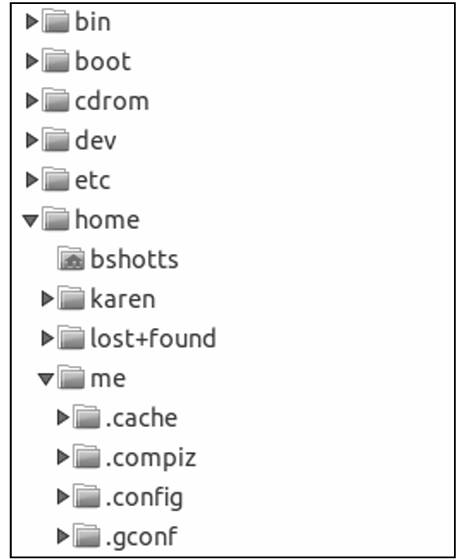
pwd=> print the current working directoryls=> list the content of the current directorycd=> change the current working directory
.=> dot files are hidden to see them =>ls -a
- Filenames and commands in Linux, like Unix, are case sensitive. The file names File1 and file1 refer to different files.
cd -=> previous working directorycd ~username=> changes to the home directory of the user
LS
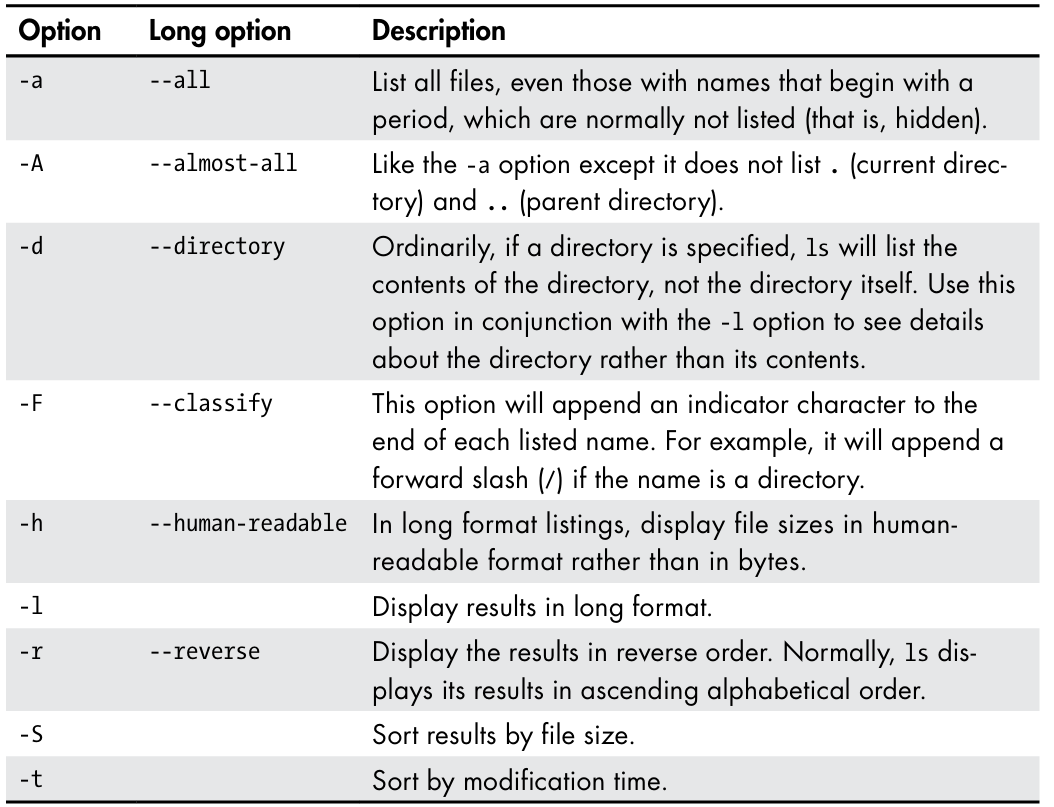
ls=> can list multiple directories at once-l=> long format
Commands
command -options argument
options can be combined
ls -lt=> long formant and sort by modification time
Commands
file filename=> displays file type and description
less
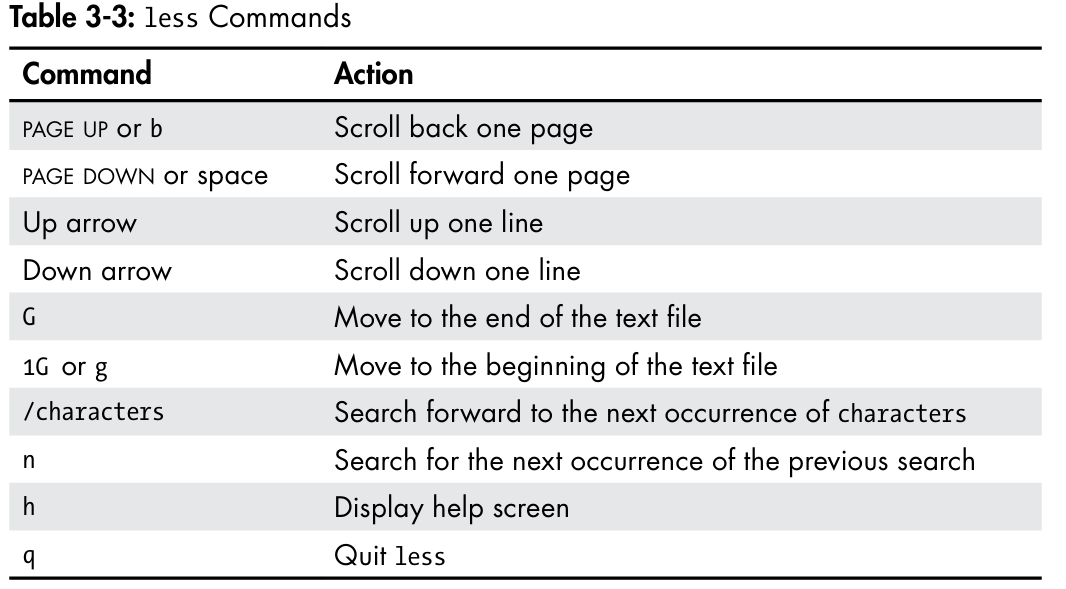
less filename=> view file content
File System
/=> contains everything/bin=> binaries of the system/boot=> linux kernel , memory image , bootloader/dev=> Here is where the kernel maintains a list of all the devices it understands/etc=> system-wide configurations ,etc/passwd=> list of user accounts/home=> each user is given a directory in /home. Ordinary users can write files only in their home directories. This limitation protects the system from errant user activity./lib=> Contains Shared Library files used by programs/lost+found=> Used for partition recovery/media=> mount points for removable media such as USB drives, CD-ROMs, and so on, that are mounted automatically at insertion./mnt=> mount points for removable devices that have been mounted manually. on older Linux systems/opt=> install options software/proc=> it is a virtual file system maintained by the Linux kernel. The “files” it contains are peepholes into the kernel itself. The files are readable and will give you a picture of how the kernel sees your computer./root=> this is the home directory for the root account/sbin=> This directory contains “system” binaries. => These are programs that perform vital system tasks that are generally reserved for the superuser./tmp=> The/tmpdirectory is intended for the storage of temporary, transient files created by various programs/usr=> contains all the programs and support files used by regular users.
/bin=> installed programs/lib=> shared libs for the programs in theusr/binlocal=> where programs that are not included with your distribution but are intended for system-wide use are installed
/bin=> Programs compiled from source code are normally installed/sbin=> system administration programs/share=> contains shared data used by programs in the/usr/bin
- This includes things such as default configuration files, icons, screen backgrounds, sound files, and so on.
/doc=> program docs/var=> where data that is likely to change is stored. Various databases, spool files, user mail, and so forth, are located here.
/log=> logs
Manipulating Files and Directories
Commands
cp=> copymv=> move/renamemdir=> create a new directoryrm=> removeln=> create links (hard and symbolic)
copy
cp -a=> (archive) copy files with all its attributescp -i=> interactive prompt for confirmation before overwritingcp -r=> recursive => recursively copy directories and their contentcp -u=> update => copy only files needs to be copies to the destination directorycp -v=> verbose => Display information while copying
move and rename
mv -i=> interactivemv -u=> updatemv -v=> verbose (information)
remove
rm -r=> recursiverm -f=> forcerm -i=> interactiverm -v=> verbose
Linking
ln file link=> hard linkln -s item link=> symbolic link => item can be a file or directory
Hard Links
- A hard link cannot reference a file outside its own file system. This means a link cannot reference a file that is not on the same disk partition as the link itself.
- can not reference directories
Symbolic Links
- creating a special type of file that contains a text pointer to the referenced file or directory.
- similar to windows shortcuts
Working With Commands
type=> how command is interpreted (external or shell builtin)which=> Display which executable program will be executed (does not work on shell builtins)help=> Get help for shellbuiltinsman=> command manual pageapropos=> Display a list of appropriate commandsinfo=> Display command's info querywhatis=> Display one line manual page descriptionsalias=> Create alias for commands
mkdir
-Z=>--context=> set security context to CONTEXT Mandatory arguments to long options are mandatory for short options too.-m=>--mode=> set file mode (as in chmod), not a=rwx – umask-p=>--parent=> no error if existing => make parent directories as needed-v=> verbose
Combining Commands
command1; command2; command3...
Alias
- `alias name='command'
unalias alias_name=> delete the alias
Redirection
catsortuniq=> unique lines onlygrep=> print line matching patternwc=> word countheadtail
-f=> continue monitoring the file and display any new added lines to ittee=> Read from standard input and write to standard output and files
File Descriptors
0=> Standard Input1=> Standard Output2=> Standard Error
- Standard Output Redirection :
>=> rewrite the file>>=> append- Standard Error Redirection :
2>- Standard Error To standard output Redirection:
2>&1&>&>>
Errors Messages Suppression
2> /dev/null=> redirect standard error to this file that accepts input and does nothing with it
Standard Input Redirection
<=> redirects standard input to what is after the operator
Pipelines
|=> read data from standard input and send to standard output- the standard output of one command can be piped into the standard input of another
grep
grep pattern filename
-i=> ignore case-v=> inverted matching (print the non matches)
Expansion
echo=> Display a line of text
Pathname Expansion
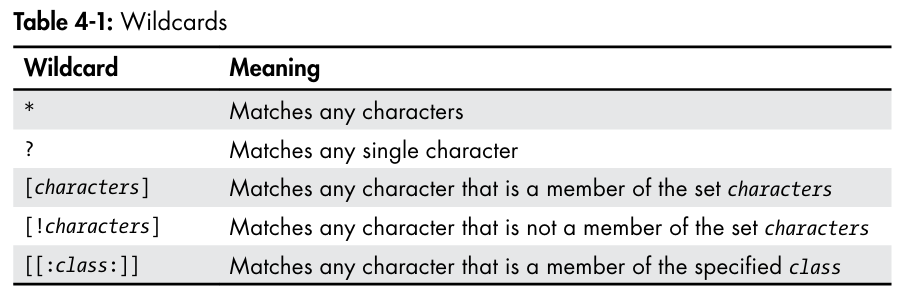
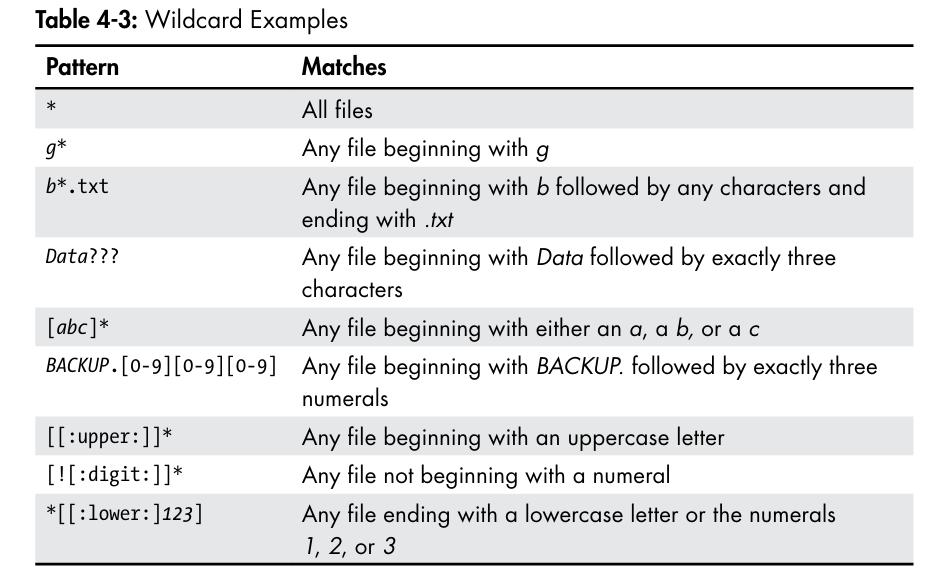
- The process that makes wildcards (
*,?,[]) work- Bash expands a pattern to match existing filenames. For example,
echo D*might expand toecho Desktop Documents.- Does not match hidden Files
Tilde Expansion
~expands to your own home directory.~usernameexpands to that specific user's home directory.- Example:
echo ~becomesecho /home/me.
Arithmetic Expansion
- Allows you to perform integer (whole number) math directly in the shell.
- Use the syntax
$((expression)).- Example:
echo $(( (5 * 2) + 1 ))will output11.
Brace Expansion
- A powerful way to generate arbitrary strings from a pattern containing braces
{}.- expands comma-separated lists or sequential ranges.
{1..9},{A-Z},{A{1,2},B{3,4}},{01..15},{A,B,C},{2007..2009}-{01..12}
Parameter Expansion
Command Substitution
- allows us to use the output of a command as an expansion.
- Enclose the command in
$(). An older syntax using backticks (`command`) also works
Quoting
selectively suppress unwanted expansions.
telling the shell to treat special characters (like *, $, or spaces) as literal text instead of interpreting them.
Double Quotes
- partial/weak quoting
- only suppresses => Word splitting (preserving spaces), pathname expansion (
*), tilde expansion (~), and brace expansion ({}).- allows
- parameter expansion
$USER- arithmetic expansion
$((1+2))- command substitution
$(ls)
Single Quote
- full/strong quoting
suppresses Everything
echo 'My user is $USER and the date is $(cal)'This will print the literal stringMy user is $USER and the date is $(cal).
Escaping Characters
\=> using the backslash
- escape, or remove the special meaning from, a single character that immediately follows it.
- It can be used inside double quotes to prevent one of the allowed expansions (like
\$).- It's also used to handle filenames that contain special characters, like spaces or ampersands (
mv my\&file.txt good_file.txt).
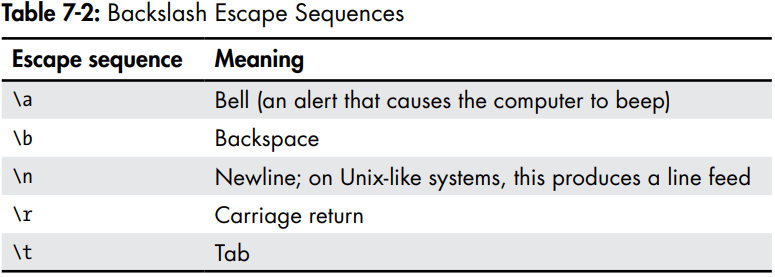
Backslash Escaping Sequences
use
echo -eto interpret the sequences
Keyboard Tricks
clear,history
Cursor Movement
ctrl + A=> beginning of the linectrl + E=> end of the linectrl + F=> forward one characterctrl + B=> Backward one characterAlt + F=> forward one wordAlt + B=> Backward one wordctrl + L=> same as the clear command
Text Modification
ctrl + D=> delete charctrl-T=> change char and its previous locationsalt + T=> transpose word and previous oneALT + L=> convert chars from cursor location to the end of the word to lowercaseAlt + U=> convert chars from cursor location to the end of the word to uppercase
Killing and Yanking
ctrl + K=> Kill text from cursor location to the end of the linectrl + U=> kill text from cursor location to the beginning of the lineALT + D=> Kill text from the cursor location to the end of the current wordalt + Backspace=> kill from cursor location to the beginning of the current wordctrl + Y=> Yank text from the kill-ring and insert it at the cursor location.
Completion
Tab + Tab=> display all the possible completionsAlt + *(alt shift 8) => insert all the possible completions
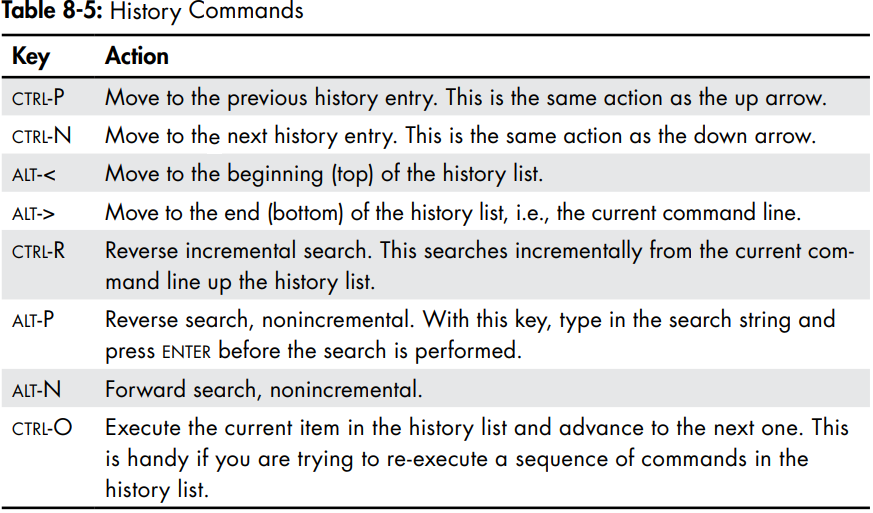
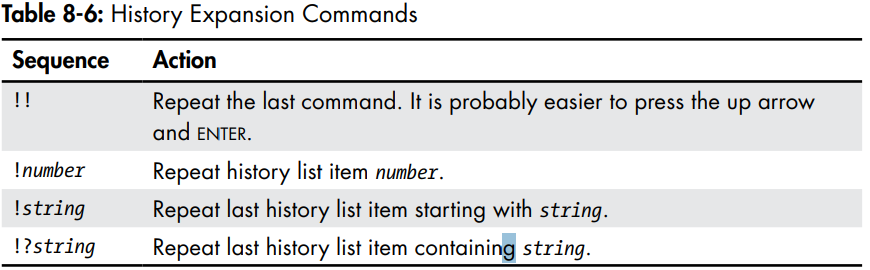
History Search
=> press
ctrl-Rfollowed by the text you are looking for
Enter=> Execute the commandctrl-J=> Copy from the history
Permissions
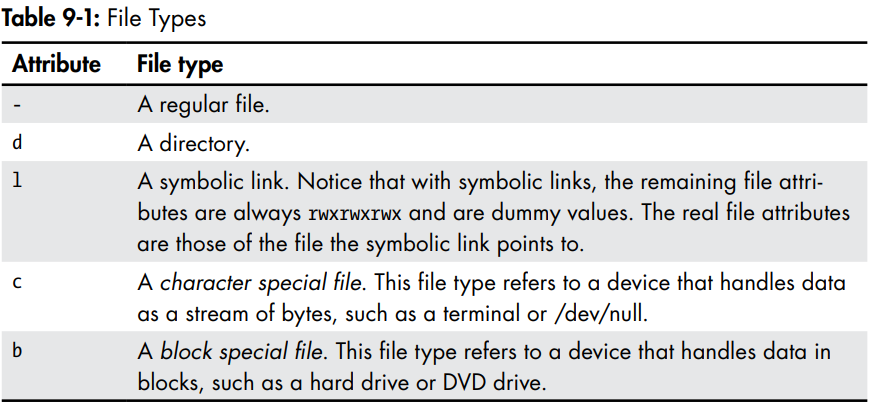
File Types
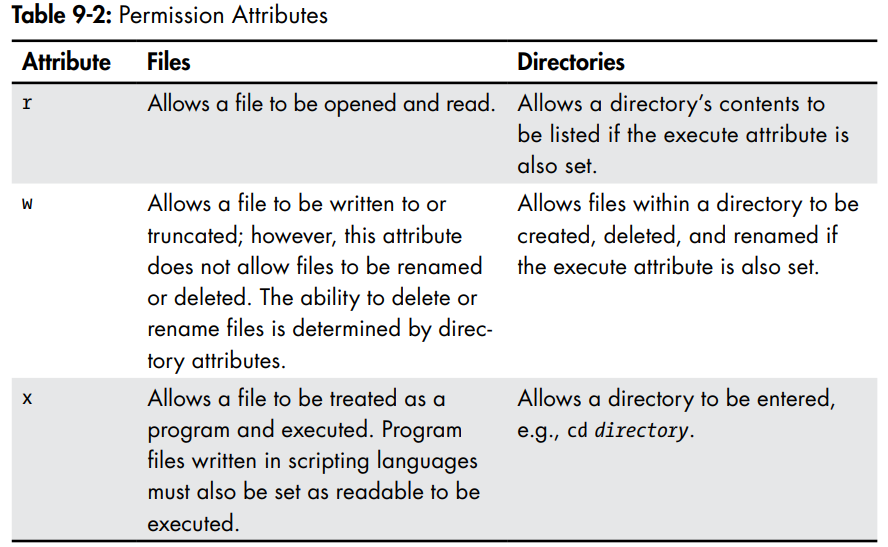
Permission Attributes
Octal Notation
chmod 777 file=> set the permissions to rwx for all owner, group , world 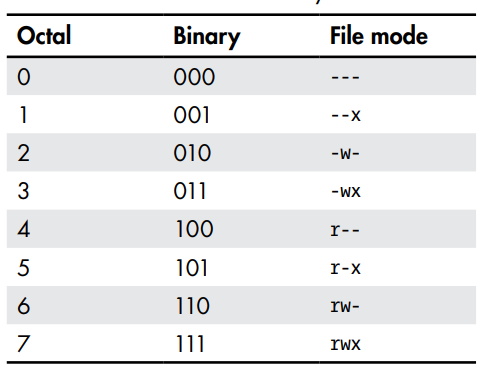
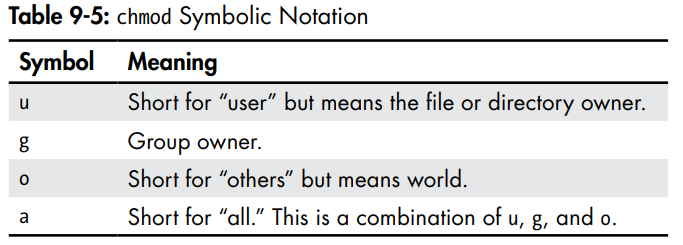
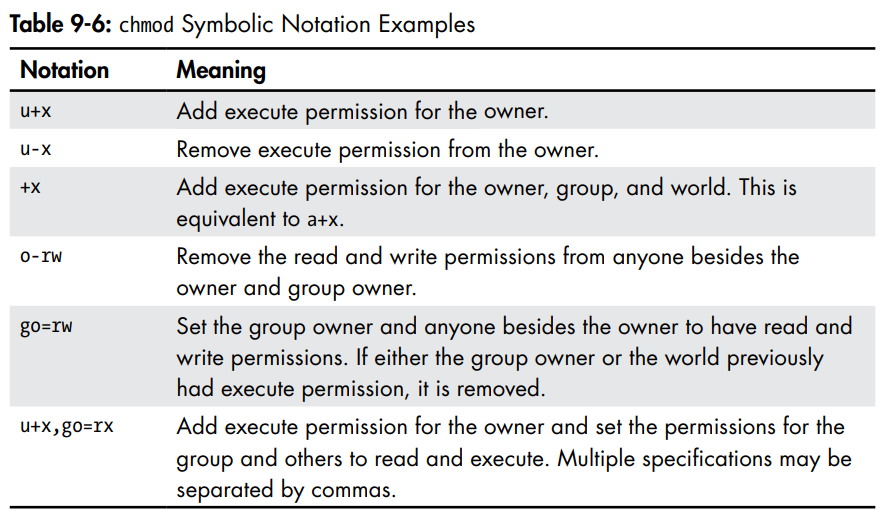
Symbolic Notation
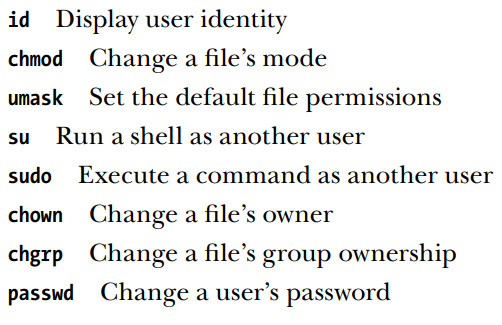
- Execute a single command as root using
su
su -c command- To see your Sudo privileges:
sudo -l
- Chown
chown [owner][:[group]] file...user:=> changes the owner to user and the group to the login group of the user
- passwd
- To change your password, just enter the passwd command. You will be prompted for your old password and your new password.
Processes
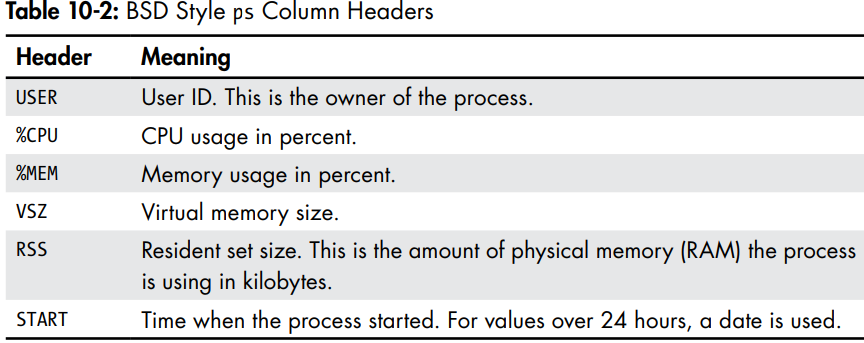
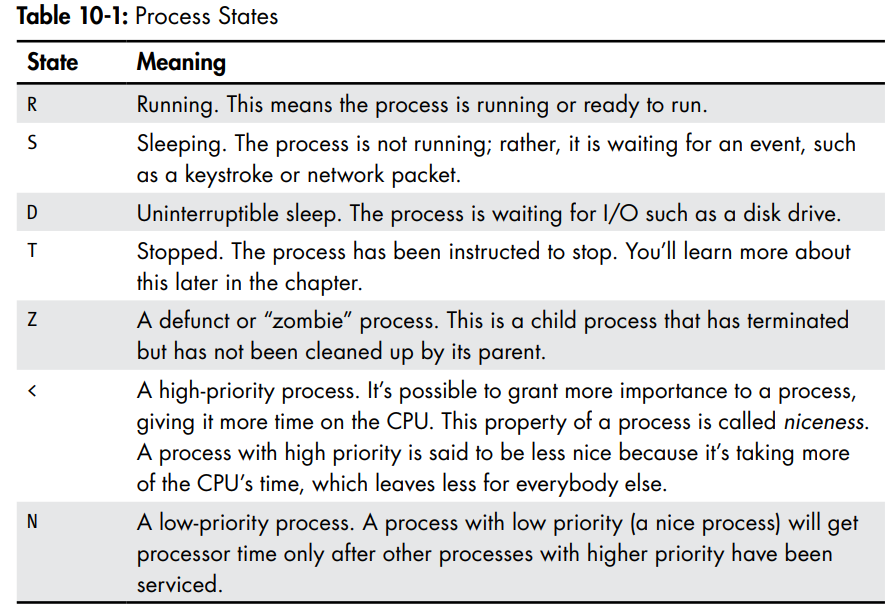
ps=> snapshot of current processestop=> display tasks , continuously updatedjobs=> List active jobsbg=> place a job in the backgroundfg=> place a job in the foregroundkill=> send a kill signal to a processkillall=> kill processes by nameshutdown=> shutdown or reboot the system
ps x=> display all of our processes regardless of what terminal (if any) they are controlled byps aux=> This set of options displays the processes belonging to every user
- 
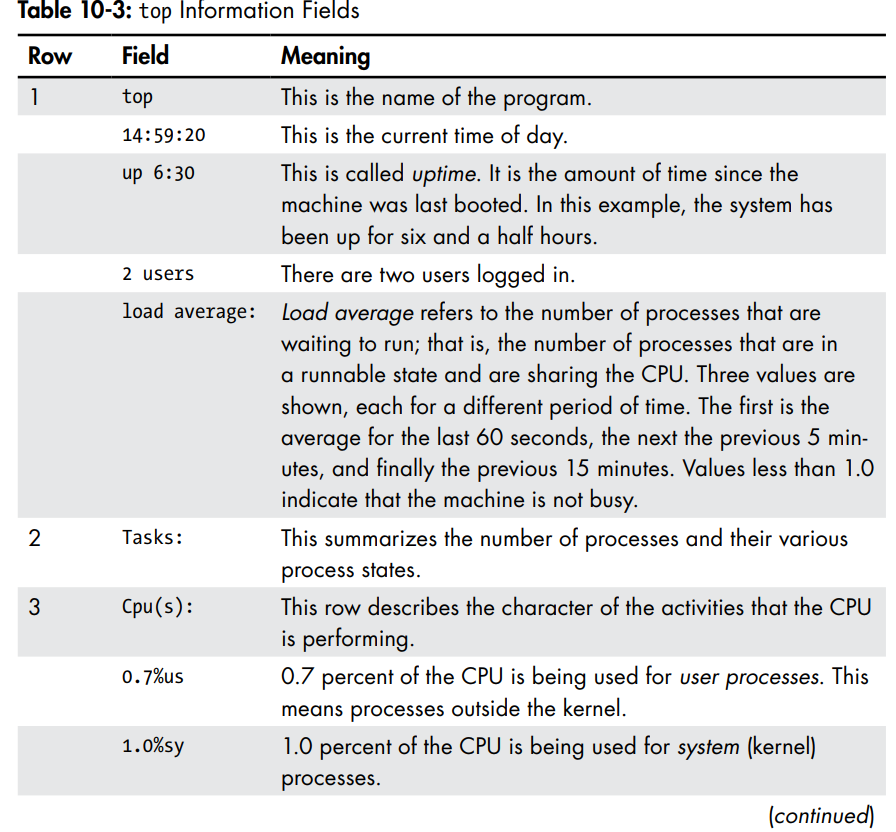
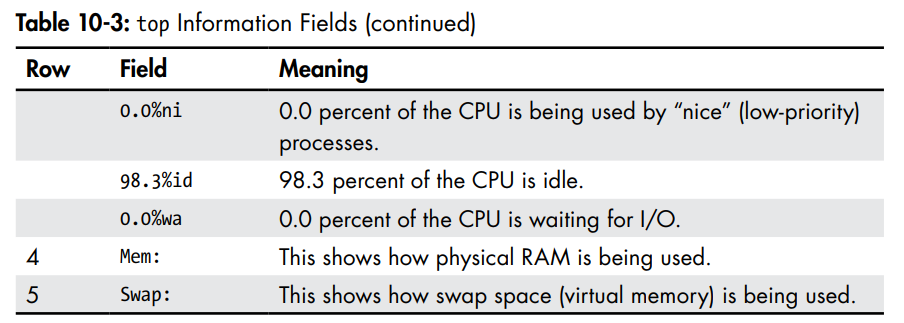
Top

Controlling Processes
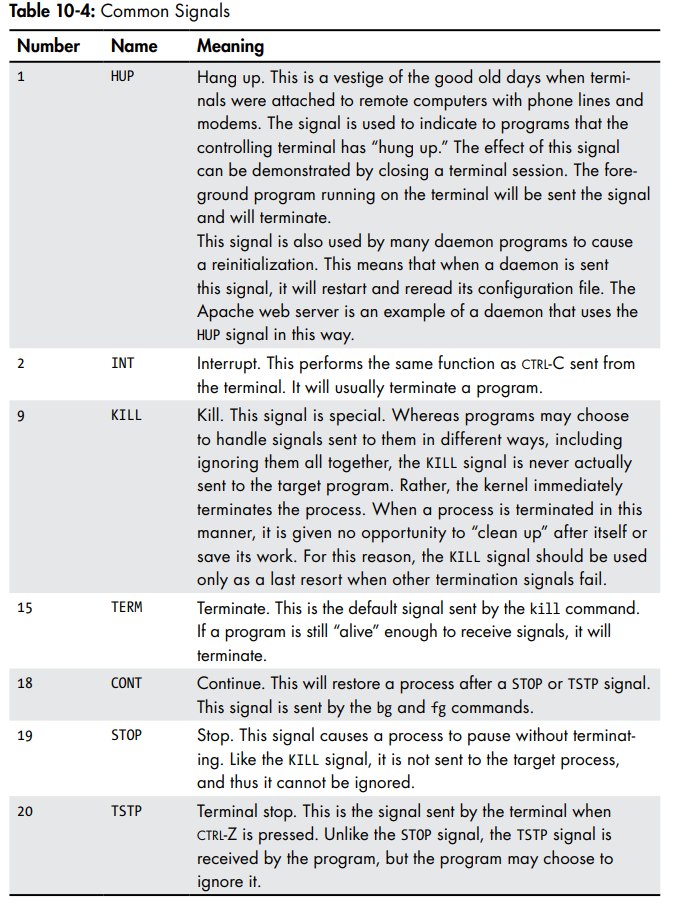
program + &=> run in the backgroundfg=> return a process to the foreground =>fg %jobnumberCTRL + Z=> make a foreground process stopped and place it in backgroundbg=> resume a process execution in the backgroundkill -signal PID=> terminate signal is the default one but there is others
- 
- 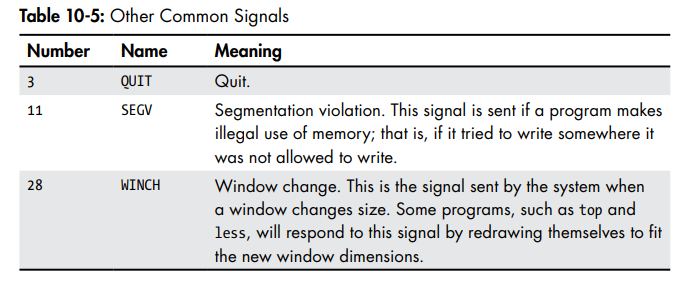
killall -u[user] -signal name
System Shutdown
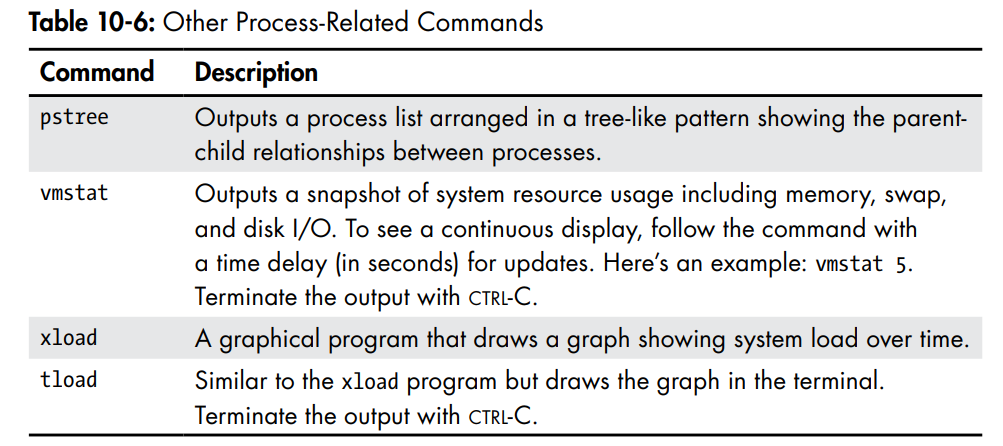
haltpoweroffrebootshutdown
sudo shutdown -h now=> haltsudo shutdown -r now=> reboot
The Environment
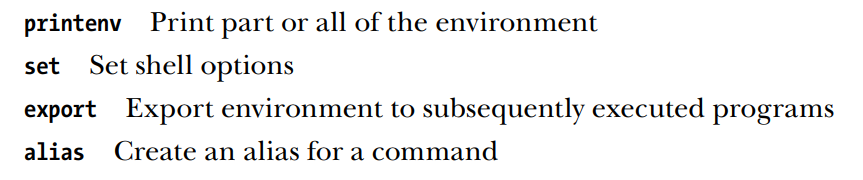
Shell variables are bits of data placed there by bash
Set without options will display both the shell and environment variables, as well as any defined shell functions
Content of a Variable can be viewed using echo
echo $HOMEalias without options will display the aliases
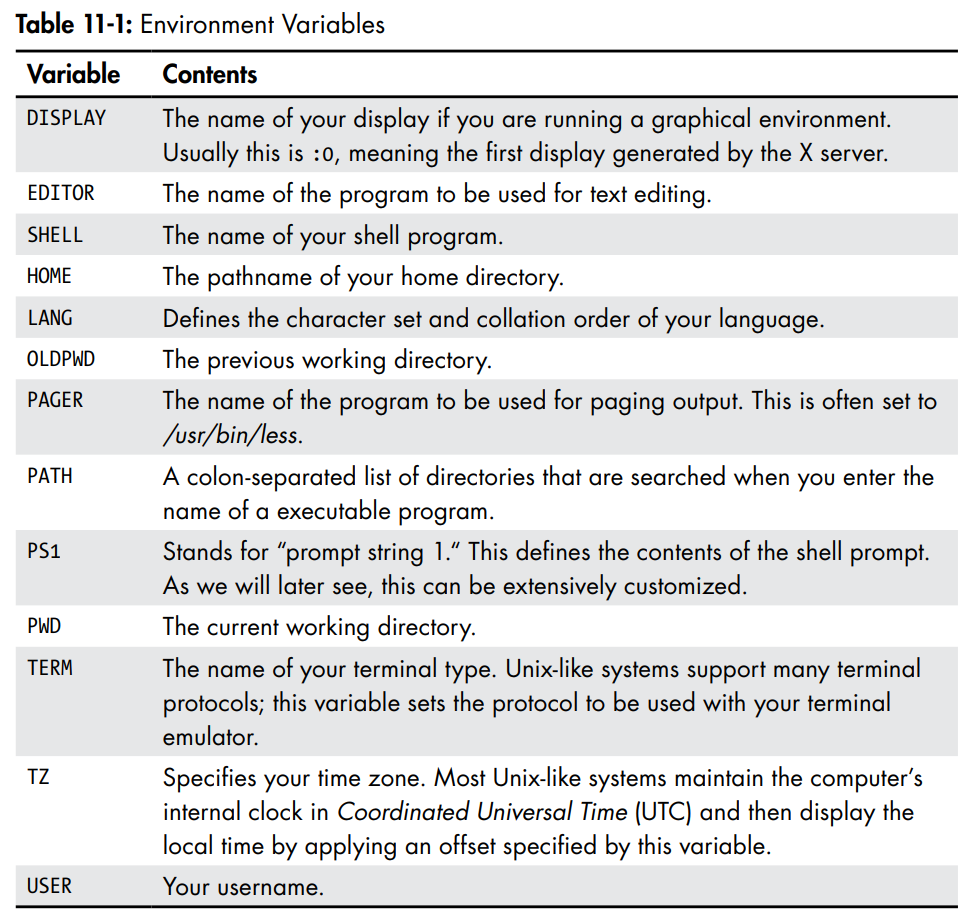
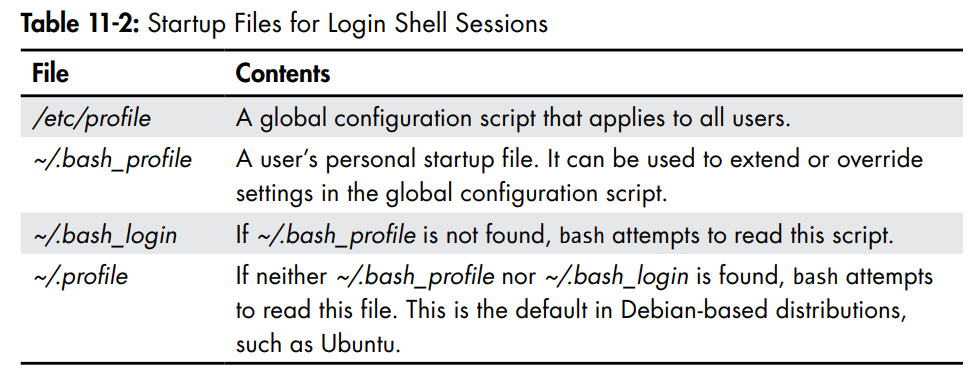
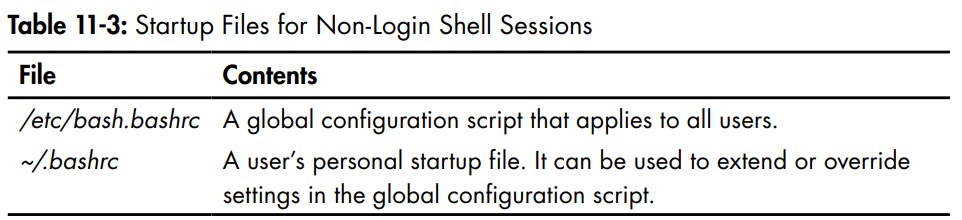
source .bashrc=> forces terminal to load the new configurations without needing to close your terminal
Little bit of Vim
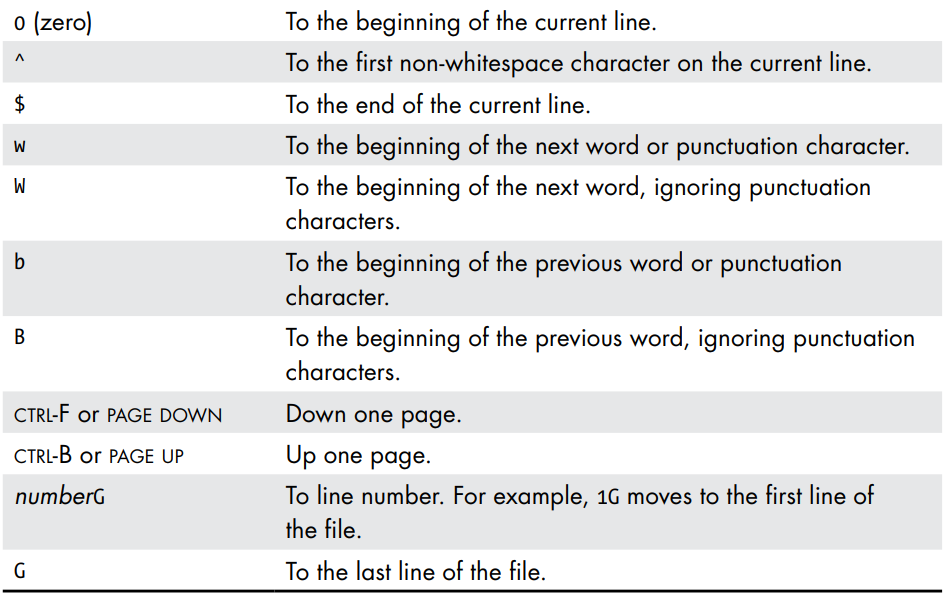
number j=> down number of linesJ=> join to lines the below line with the above
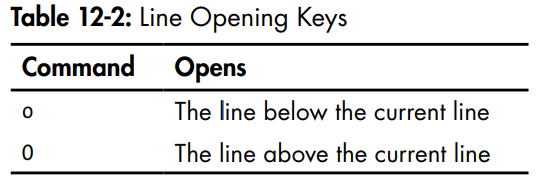 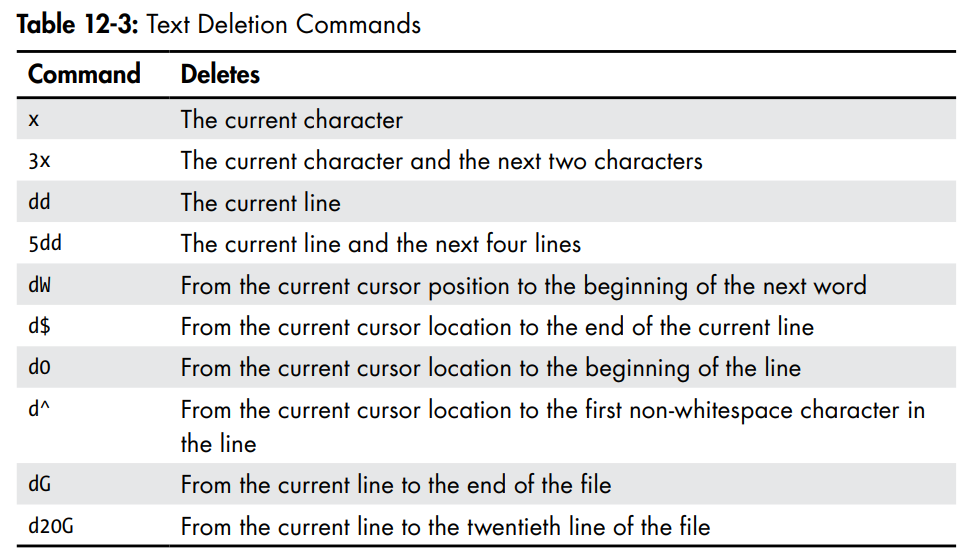
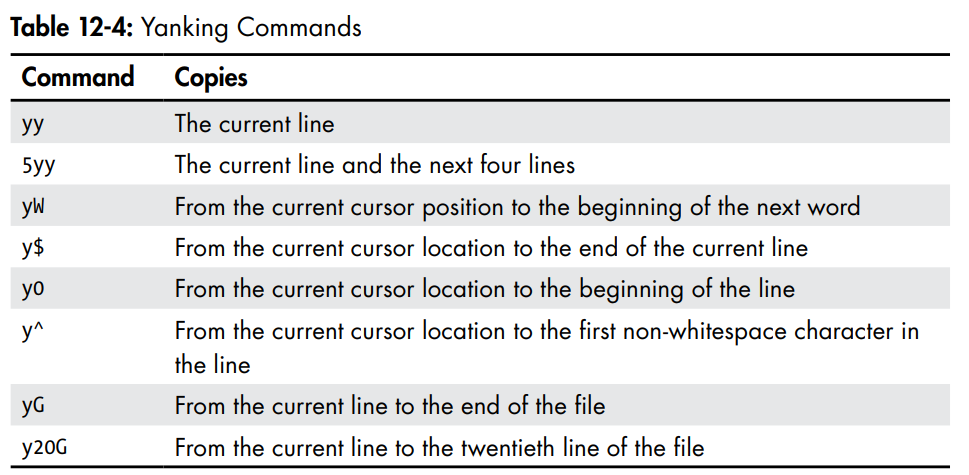
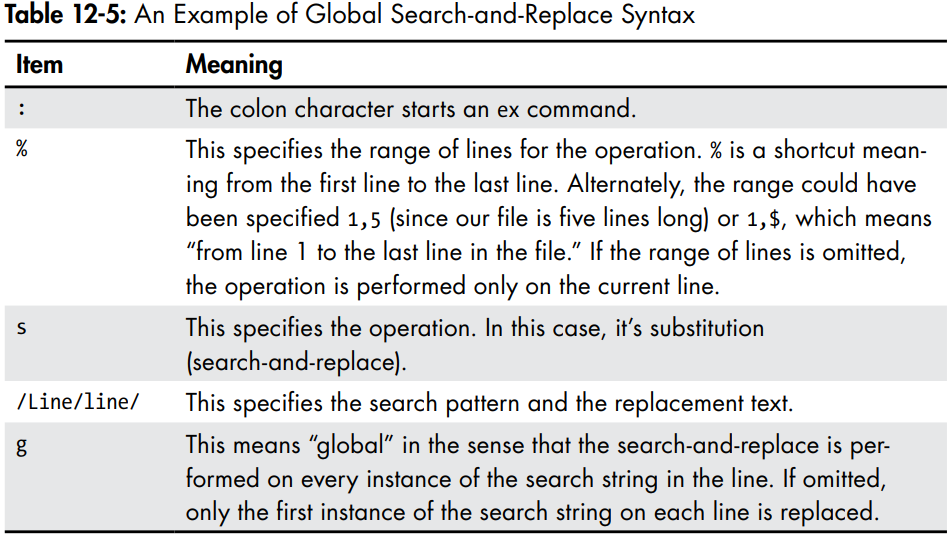
f+char=> search a line for the character:%s/Line/line/g=> Search and Replace:%s/line/Line/gc=> needs user confirmation for the replacement
Editing multiple files
:bn=> switch to the next file:bp=> switch to the previous file:buffers=> list the files being edited rn:buffer'number of the buffer'=> switch to the file (buffer):e file.txt=> add more files for editing:r file.txt=> inserts an entire file to another
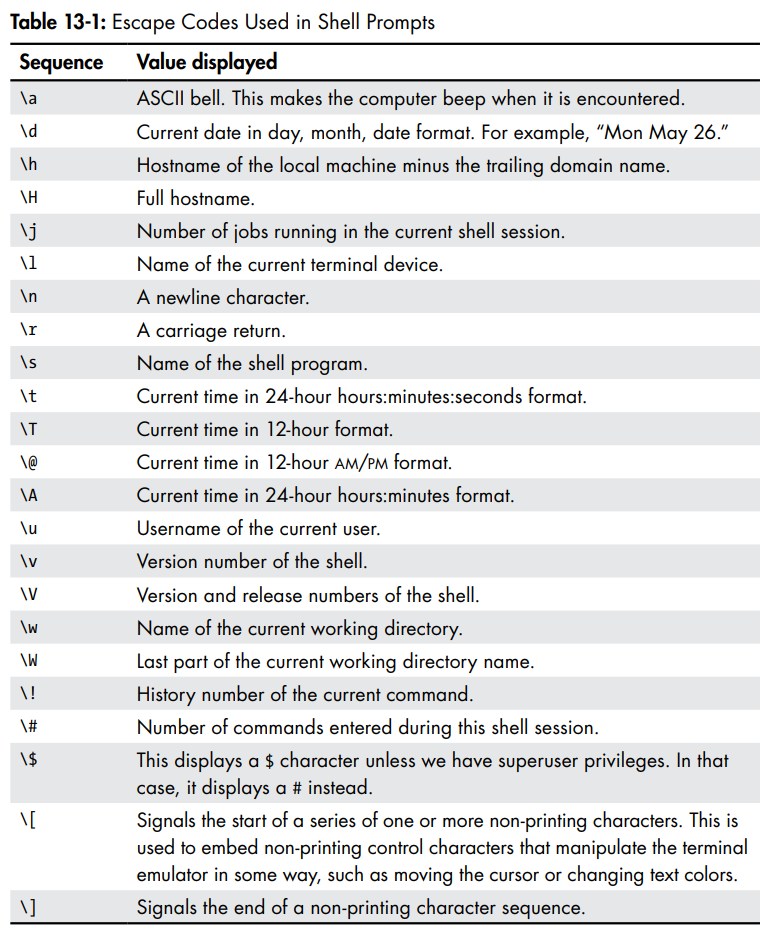
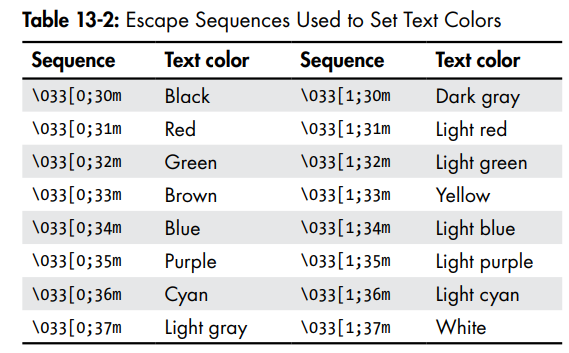
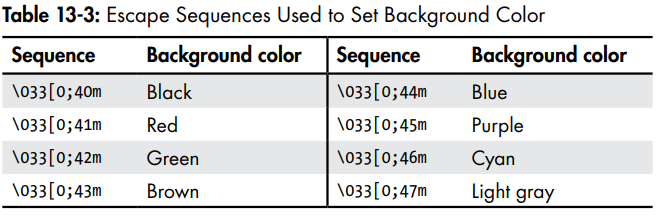
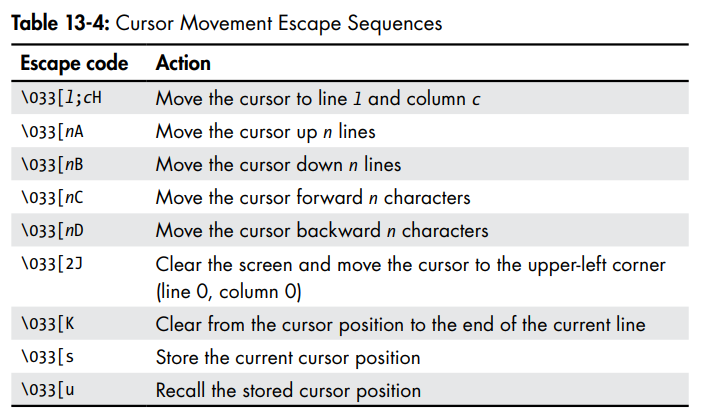
Customize The Prompt
Storage Media
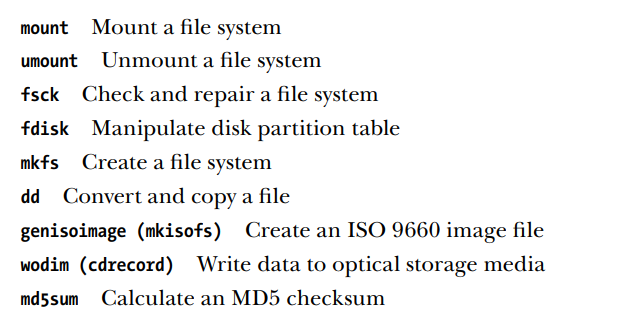
- Mounting
- => attaching the device to the file system tree
etc/fstab=> (file system table) lists the devices (typically hard disk partitions) that are to be mounted at boot time
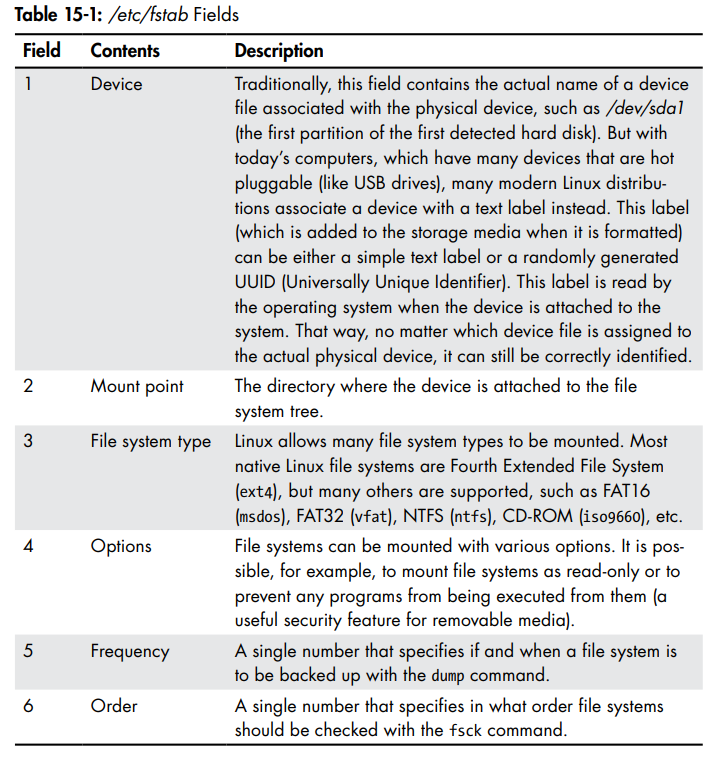
mount -t filesystemType device directory=> manually mounting a filesystemumount device=> manually unmounting a filesystem
Storage Devices Names
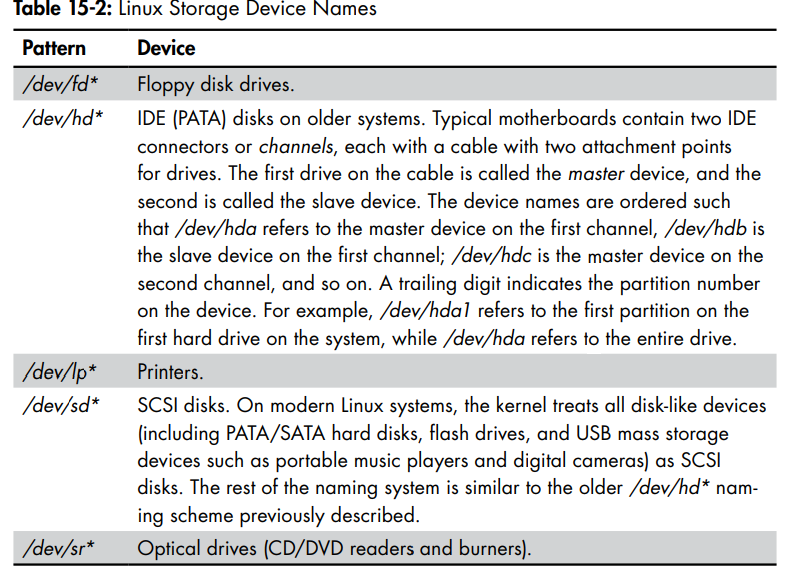
Creating New File Systems
Fdisk
- before using fdisk you have to unmount
fdisk device=> usemfor help- 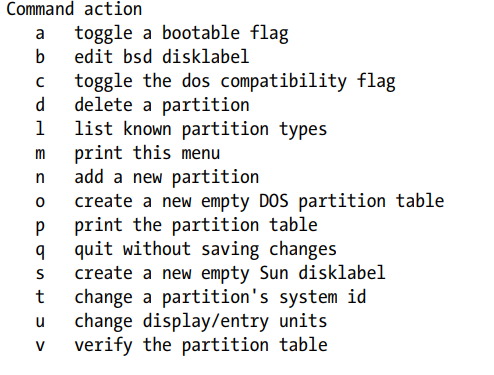
w=> write table to disk and exitx=> extra functionality
mkfs
mkfs -t filesystemType device=> make a new file system with a type on a device
Testing and repairing file systems
fsck
fsck device=> checks for the integrity of the file systems- devices should be unmounted before checking
Moving Data
dd
dd if=input_file of=output_file [bs=block_size [count=blocks]]
- => copies blocks of data from one place to another
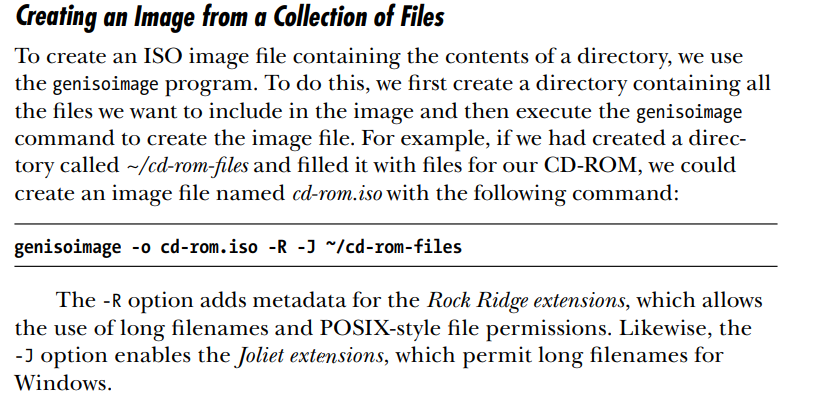
genisoimage
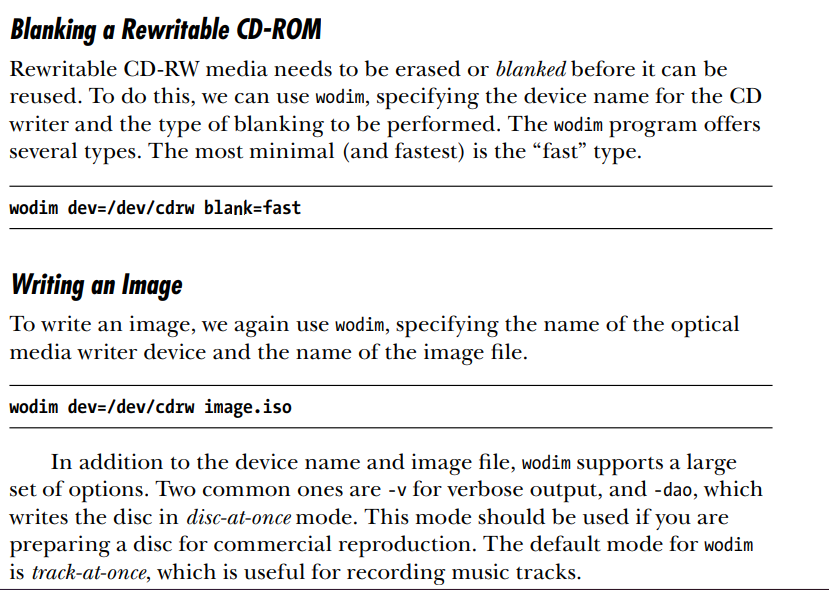
Wodim
Networking
ping=> send request to hoststraceroute=> Print the route packets trace to a network hostip=> Show/manipulate routing , devices , policy routing and tunnelsnetstat=> Print network connections, routing tables, interface statistics, masquerade connections, and multicast membershipsftp=> Internet file transfer programwget=> Non-interactive network downloaderssh=> OpenSSH Client
ip addr show,ip a=> show ip addresses of the systemnetstat -ie=> examine the network interfacesnetstat -r=> display the kernel’s network routing tablessh -X=> it can be-Y=> used to connect to an X server and display GUI applicationsscp=> make use of an SSH-encrypted tunnel to copy files across the network.
- 
sftp=> secure replacement for the ftp program
- does not need a ftp server to be running on the remote machine just ssh server
Searching For Files
locate=> Find Files by namefind=> Search for files in a directory hierarchyxargs=> Build and execute command lines from standard inputtouch=> Change file timesstat=> Display file or file status
Find
find -type d=> search for directories only !find -type f=> files only 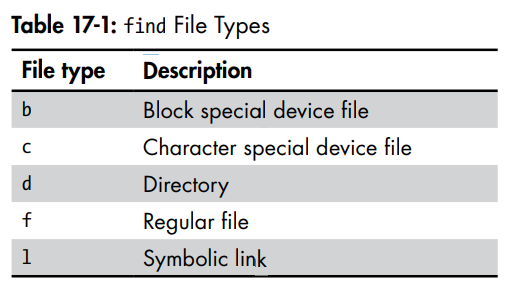
find -name ""=> search by name- wild cards can be used like this
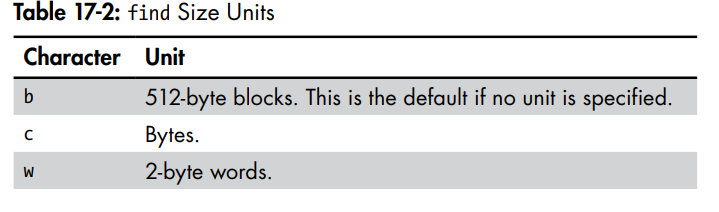
find -type f -name "*.jpg"find -size size=> search by size of the file
- 
- 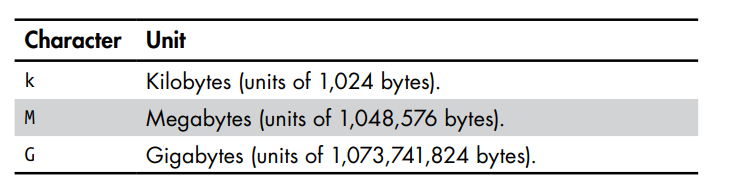
find -size +1M=> searching for files larger+than 1 megabytes
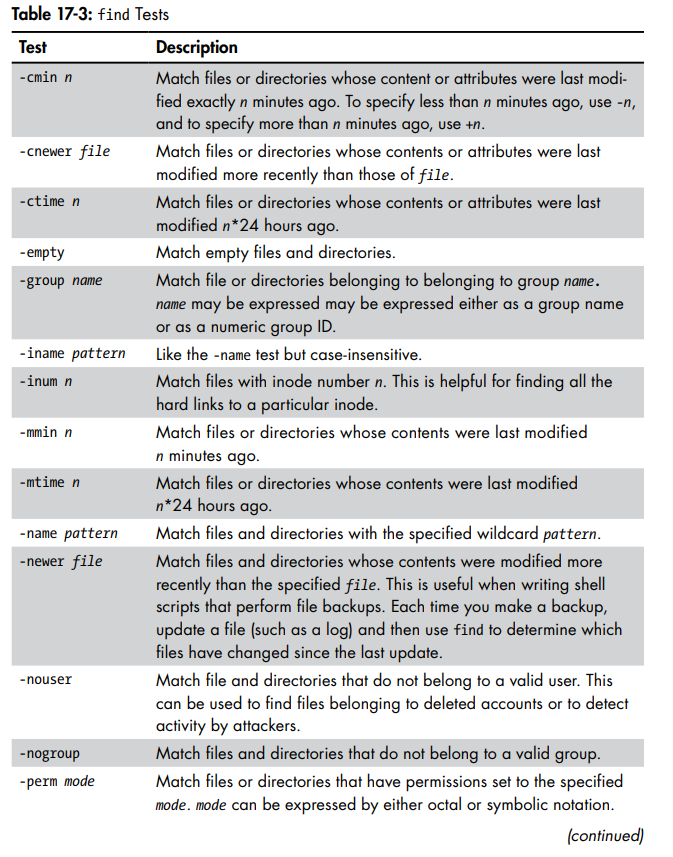
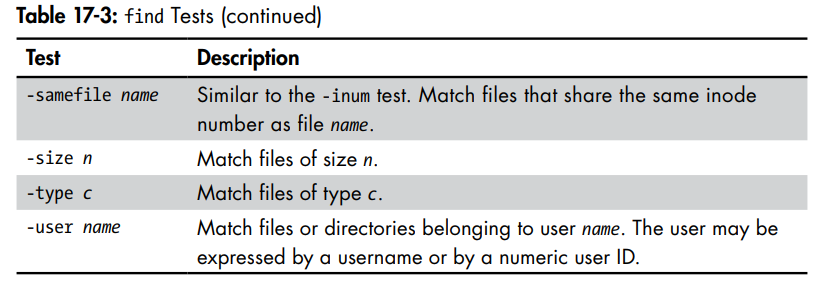
Find Tests
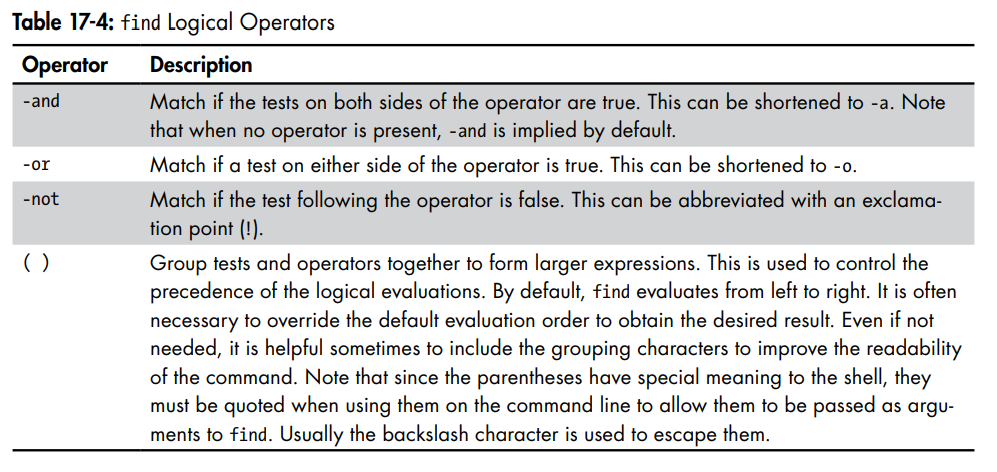
Find Operators
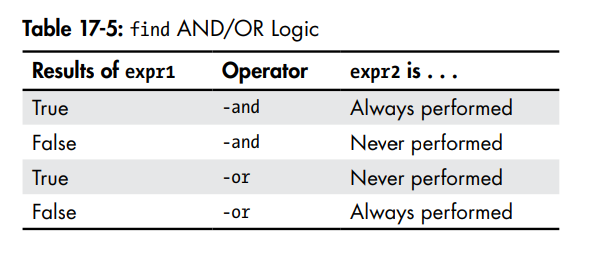
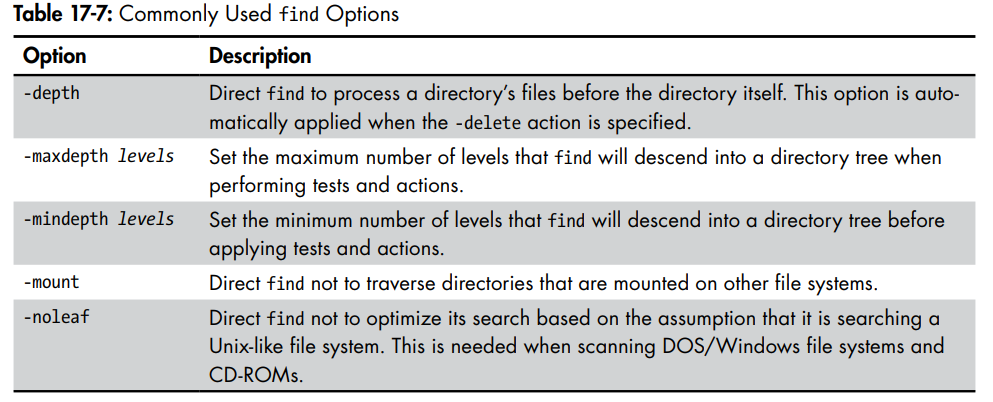
Find Pre-defined Actions
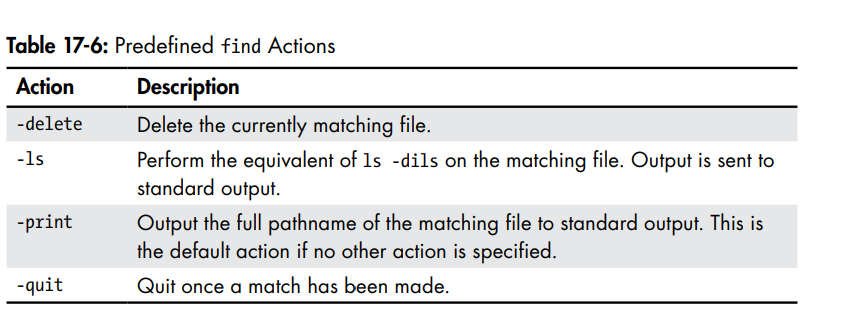
User-defined Actions
-exec command {};=> -exec ls -l '{}' ';'-ok command {};=> used interactively user is prompted before he executes the operation
Xargs
=> accepts input from standard input and converts it as an argument list for a specified command
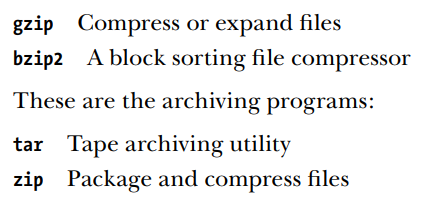
Archiving and Backup
rsync=> Remote file and dictionary synchronization
gzip
options 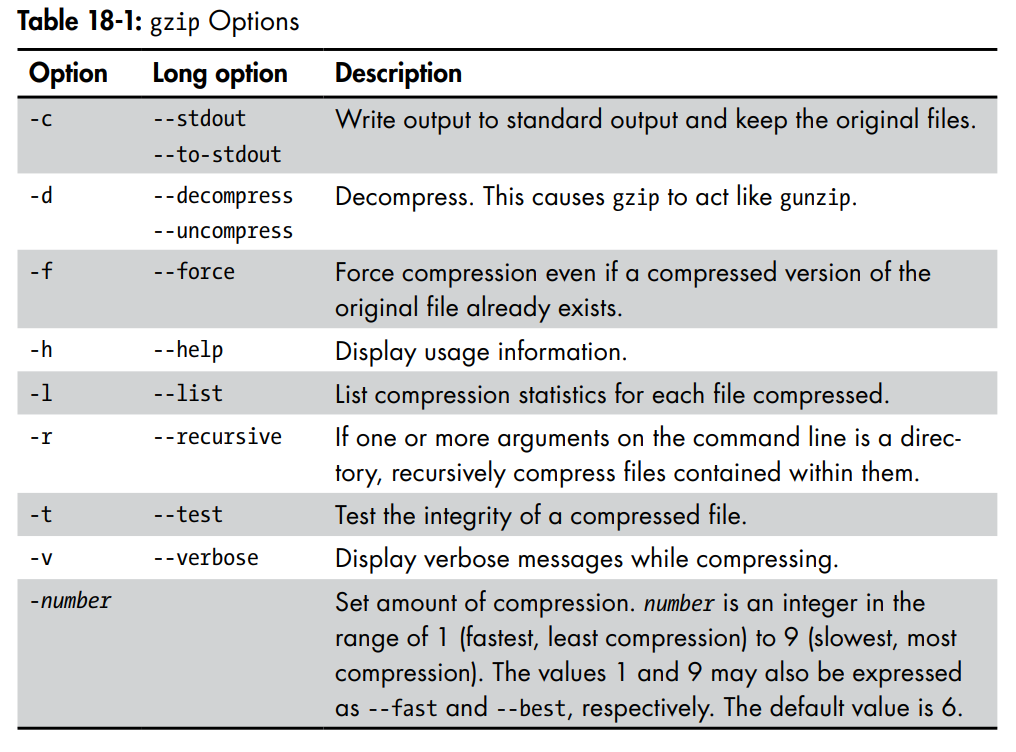
zcat=> equivalent togunzip -c=> view the content of a compressed filezless=>zcat | lessbzip2=> same as gzip but it uses different algorithm
Archiving
tar
tar options pathname- 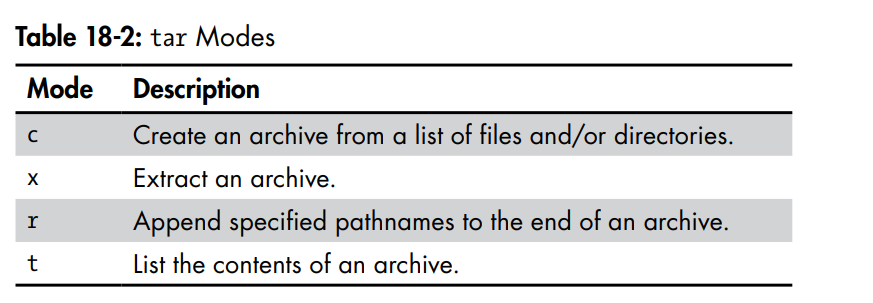
f=> specify the name of the archive =>tar cf namev=> verbose- Can extract some files from the tar
- can use wildcards like this
tar xf archive.tar --wildcards 'home/me/playground/dir-*/file-A'- when using
-=> in commands means standard input or output--files-from=> causes tar to read its list of pathnames from a file rather than the command line- options to extract compressed archives using tar :
z=> extract gzip archivestgz,tar.gzj=> extract bzip2 archivestbz,tar.bz2
Transfer files over network using tar and ssh
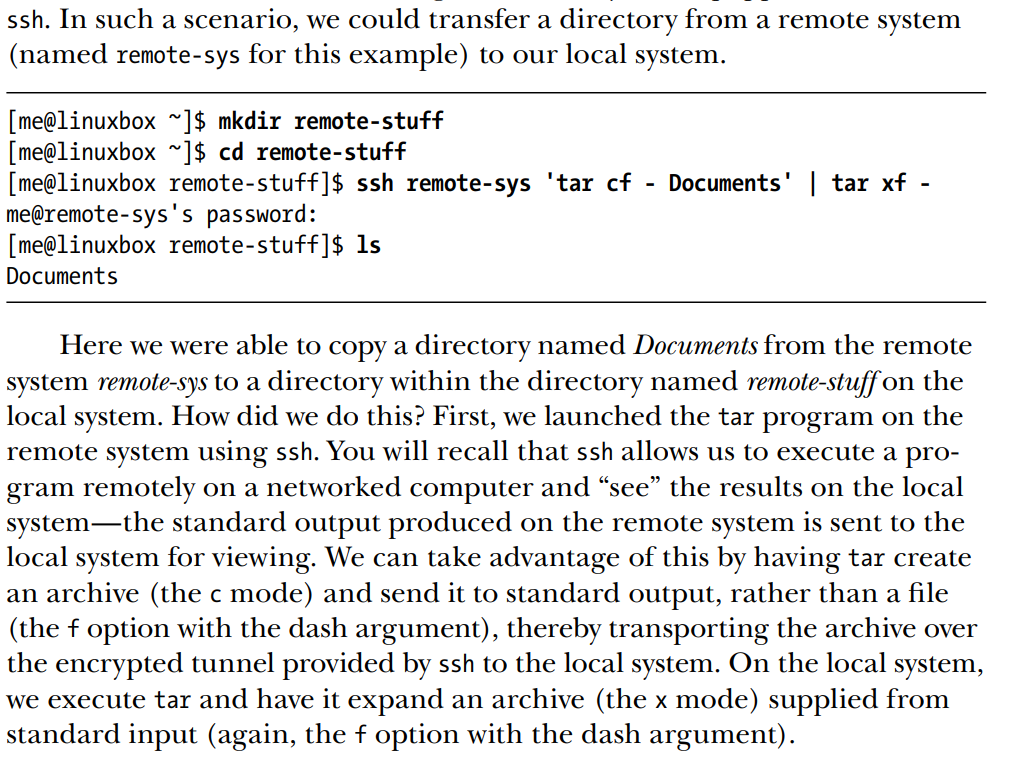
zip
Compression and Archiving Tool
-r=> recursively add the content of a directoryunzip=> unzipping the files
-l=>causes unzip to merely list the contents of the archive without extracting the file. If no files are specified, unzip will list all files in Archiving and Backup the archive-p=> to use pipelining-@=> pipe a list of filenames to zip
find playground -name "file-A" | zip -@ file-A.zip
File and Directories Synchronization
rsync
rsync options source destination
-a=> archiving-v=> verbosersync source/ destination=> copies the content of the source folder only--delete=> delete files on the destination that is no longer on the source
Over Network
[me@linuxbox ~]$ sudo rsync -av --delete --rsh=ssh /etc /home /usr/local remote-sys:/backup
--rsh=ssh=> use the ssh program as its remote shell. In this way, we were able to use an ssh-encrypted tunnel to securely transfer the data from the local system to the remote host
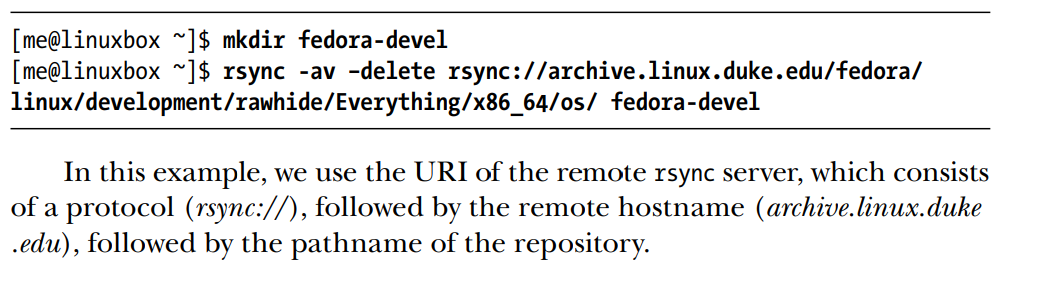
Regex
- Grep => Global regular expression print
grep [options] regex [file ...]
Grep Options
-i=> Ignore case-v=> Invert match-c=> Count-l=> Files that has matches-L=> Files that does not have matches-n=> Prefix each matching line with the number of the line within the file.-h=> For multifile searches, suppress the output of filenames.
Metacharacters and Literals
^ $ . [ ] { } - ? * + ( ) | \
The Any Character (.)
=> used to match any character in that position
Anchors ⚓
- The Caret
^=> at the beginning of the line- The Dollar Sign
$=> at the end of the line
^$=> match blank lines^match$=> match only the lines that has the match word only
Bracket Expressions and Character Classes
[]=> specify a set of characters (including characters that would otherwise be interpreted as metacharacters) to be matched- 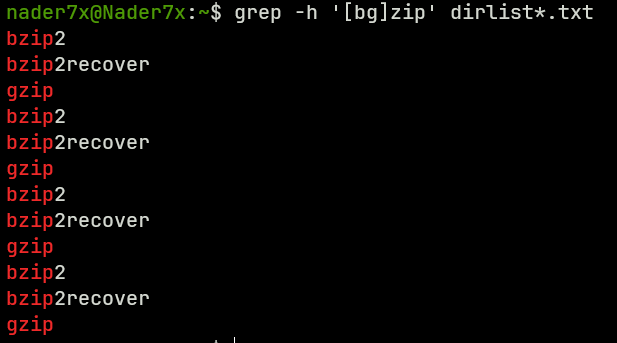
- Meta Characters lose their meaning when they are in brackets unless :
- The first is the caret (^), which is used to indicate negation
- the second is the dash (-), which is used to indicate a character range.

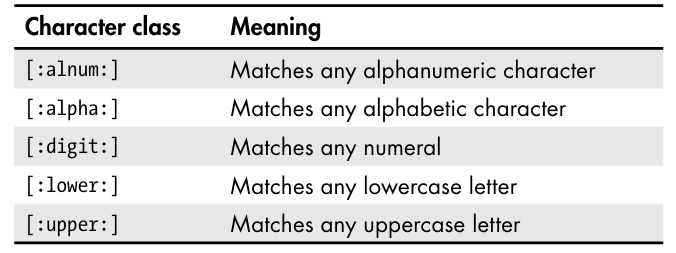
POSIX Character Classes
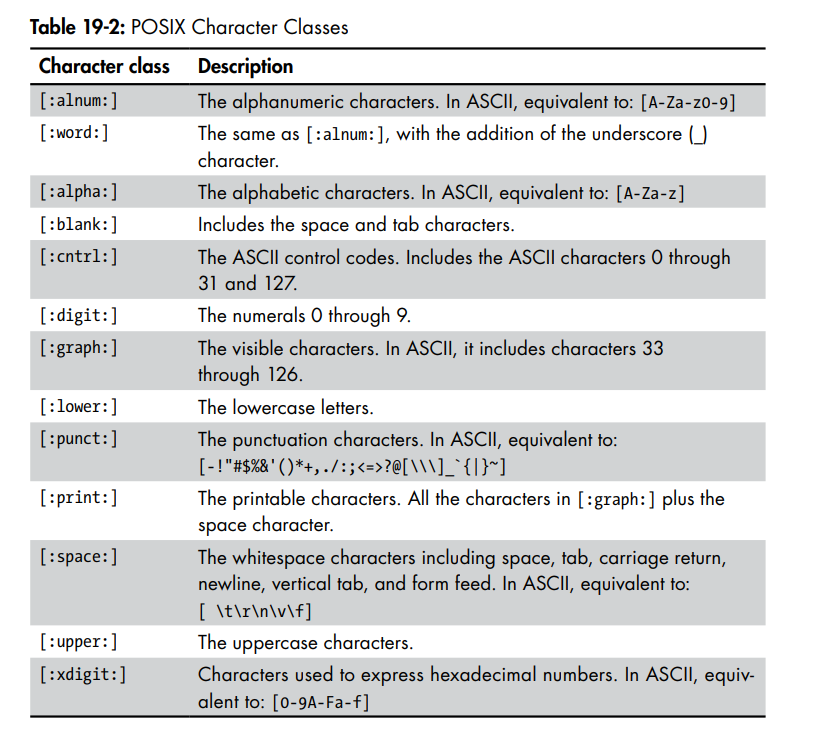
POSIX Basic vs. Extended Regular Expressions
| Basic Regular Expressions (BRE) | Extended Regular Expressions (ERE) |
|---|---|
^ $ . [ ] * only the rest is literals | ^ $ . [ ] * ( ) { } ? + | the rest is literals |
(,) {,} => are considered meta characters only if they are escaped with a backslash | preceding any metacharacter with a backslash causes it to be treated as a literal. |
Alternation
allows a match to occur from among a set of expressions
grep -E=> to use Extended Regular Expressions
|=> Used as OrTo combine alternation with other Expressions we can use
()=> so we use the alternation inside it
^(x|d|g)
Quantifiers
? => Match zero or one time
^\(?[0-9][0-9][0-9]\)? [0-9][0-9][0-9]-[0-9][0-9][0-9][0-9]$=> Regular Expression to match of its a valid phone number
- at first part
(000)- we backslash escape the parentheses => so they don't its not processed as a regex
- quantify them => because they can exist or not
* => Match Zero or More Times
echo "This works." | grep -E '[[:upper:]][[:upper:][:lower:] ]*\.'
echo "This Works." | grep -E '[[:upper:]][[:upper:][:lower:] ]*\.'
echo "this does not" | grep -E '[[:upper:]][[:upper:][:lower:] ]*\.'
- Matching a Sentence
- has to Start with Upper case letter and then any number of upper case or lower case letter
- backslash the period to escape it as a literal
+ Match One or More Times
echo "This That" | grep -E '^([[:alpha]]+ ?)+$'
- match only the lines consisting of groups of one or more alphabetic characters separated by single spaces
(...)+: This is a capturing group that must match one or more times.[[:alpha:]]+: Matches one or more alphabetic characters (a word).?: Matches a single space character. The?makes the space optional (it can appear zero or one time).
{} Match Specific Number of Times
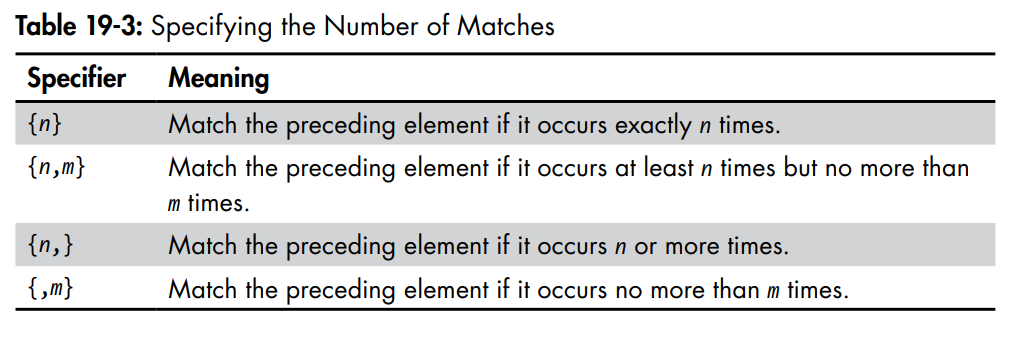
^\(?[0-9][0-9][0-9]\)? [0-9][0-9][0-9]-[0-9][0-9][0-9][0-9]$
=> optimized to this by the {}
^\(?[0-9]{3}\)? [0-9]{3}-[0-9]{4}$
No More repetition
#match
echo "(555) 123-4567" | grep -E '^\(?[0-9]{3}\)? [0-9]{3}-[0-9]{4}$'
#match
echo "555 123-4567" | grep -E '^\(?[0-9]{3}\)? [0-9]{3}-[0-9]{4}$'
#no-match
echo "5555 123-4567" | grep -E '^\(?[0-9]{3}\)? [0-9]{3}-[0-9]{4}$'
Text Processing
Distros.txt
SUSE   10.2   12/07/2006
Fedora   10   11/25/2008
SUSE   11.0   06/19/2008
Ubuntu   8.04   04/24/2008
Fedora   8   11/08/2007
SUSE   10.3   10/04/2007
Ubuntu   6.10   10/26/2006
cat=> Concatenate files and print on the standard outputsort=> Sort lines of text filesuniq=> Report or omit repeated linescut=> Remove sections from each line of filespaste=> Merge lines of filejoin=> Join lines of two files on a common fieldcomm=> Compare two sorted files line by linediff=> Compare files line by linepatch=> Apply a diff file to an originaltr=> Translate or delete characterssed=> Stream editor for filtering and transforming textaspell=> Interactive spellchecker
Cat
cat -A=> display non-printing characterscat -n=> number linescat -s=> suppress the output of multiple blank lines
Sort
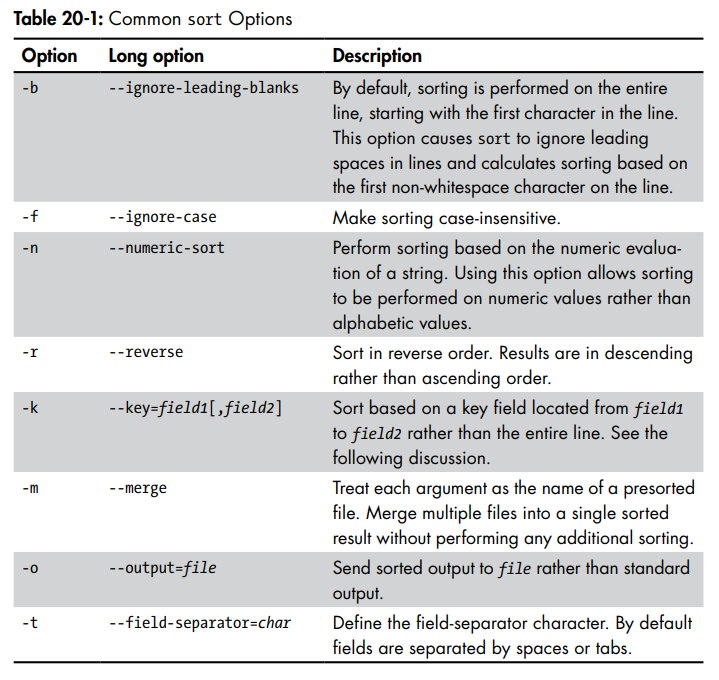
#uses the k to select the 5th field for sorting on it numerically by size this can be done because sort process in database terms
#r reverse sorting
#n numerical
ls -l /usr/bin | sort -nrk 5 | head
#In the first instance of the key option, we specified a range of fields to include in the first key. Because we wanted to limit the sort to just the first field, we specified 1,1, which means “start at field 1 and end at field 1.” In the second instance, we specified 2n, which means field 2 is the sort key and that the sort should be numeric
sort --key=1,1 --key=2n distros.txt#specifying -k 3.7, we instruct sort to use a sort key that begins at the seventh character within the third field, which corresponds to the start of the year. Likewise, we specify -k 3.1 and -k 3.4 to isolate the month and day portions of the date.
sort -k 3.7nbr -k 3.1nbr -k 3.4nbr distros.txt Uniq
=> Remove Duplicates
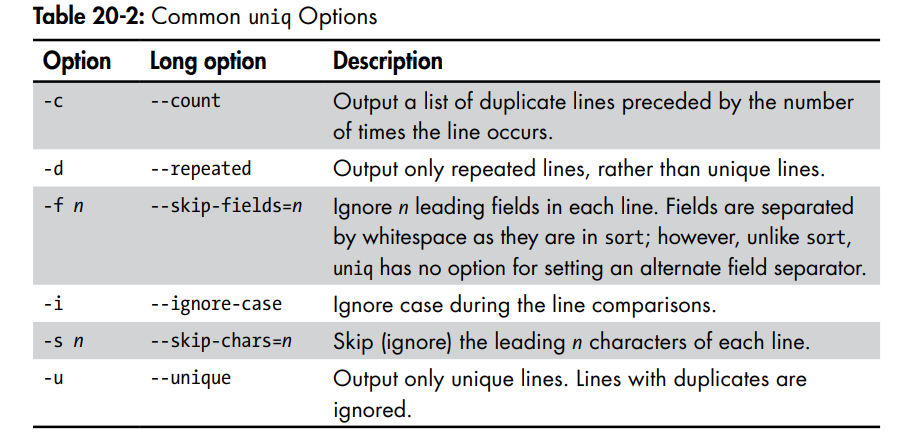
Slicing And Dicing
Cut
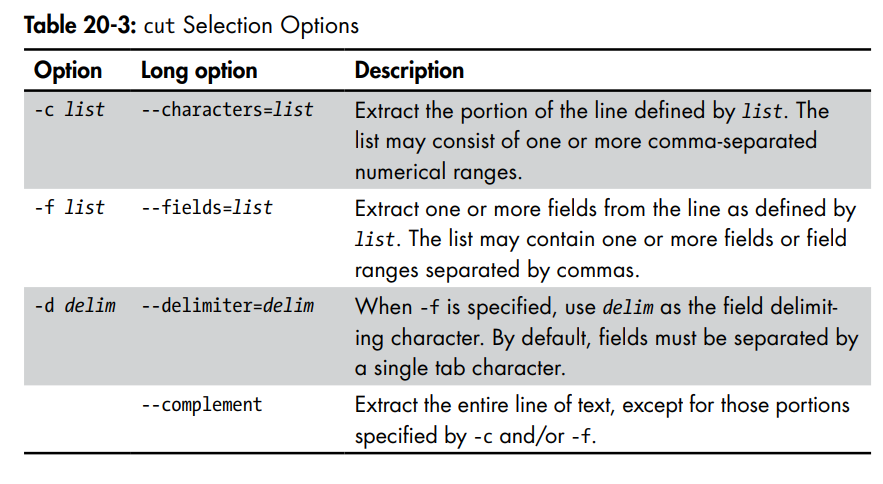
cut -f 3 distros.txt | cut -c 7-10
#2006 2008 2008 2008 2007 2007 2006 2007 2007 2007 2006
cut -d ':' -f 1 /etc/passwd | head
#root daemon bin sys sync games man lp mail news
Paste (Merge lines)
paste file1 file2
Join
join file1 file2
Comparing Text
comm
Compare sorted files line by line
comm supports options in the form -n, where n is either 1, 2, or 3.
comm -12 file1 file2=> only show the shared lines
diff
Compare Files Line by Line
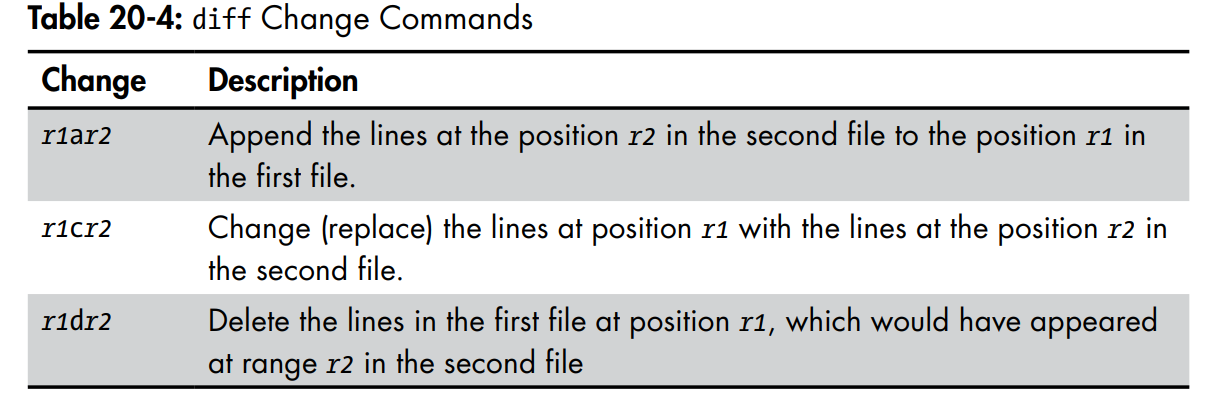
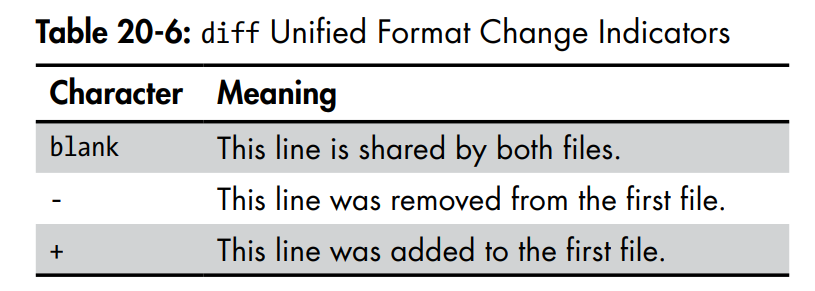
-c=> context format
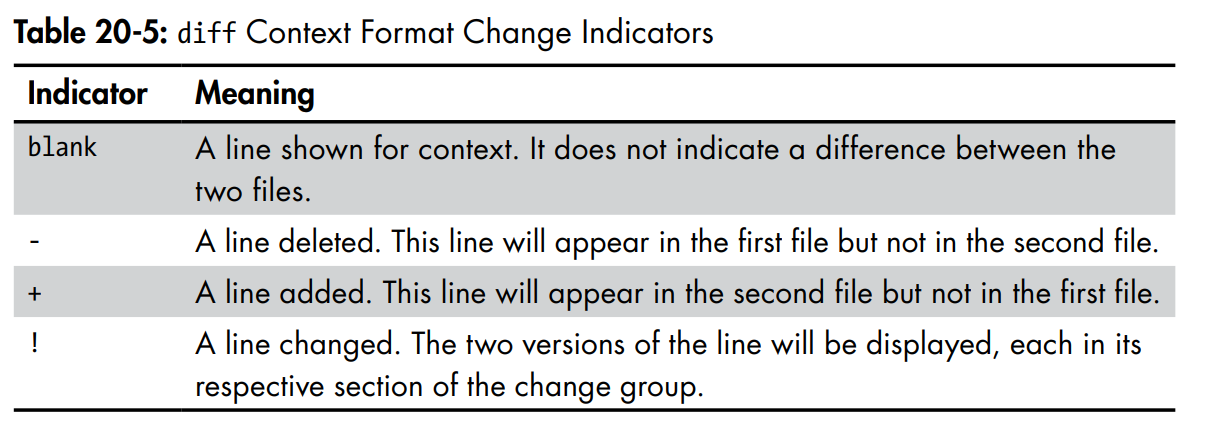
-u=> unified format
Patch
Apply diff to an Original
Editing on the Fly
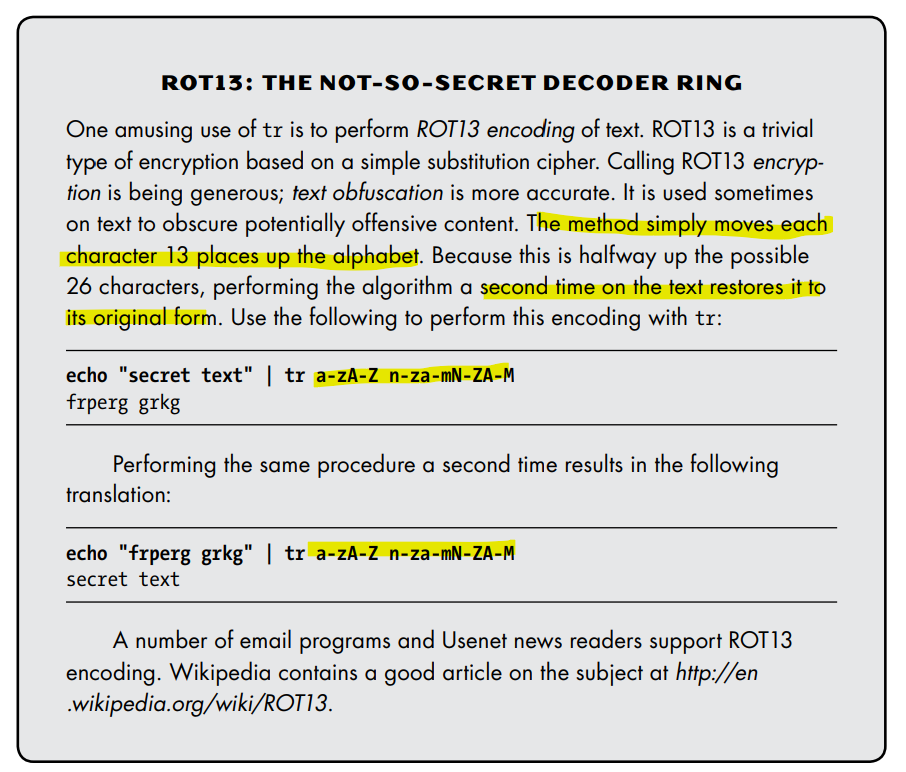
Transliterate or Delete Characters (tr)
character-based search and replace operation
tr -s=> squeeze (delete) repeated characters
echo "aaabbbccc" | tr -s ab
#abccc
the repeated characters must be adjoining (ex.
aaaaabbbbb) for the squeeze to take effect (ex.abababababab) nothing happens here
Sed
Stream Editor for Filtering and Transforming Text
perform filtering on a stream of text
sed command/text/text/=> anything else can be used as a delimiter
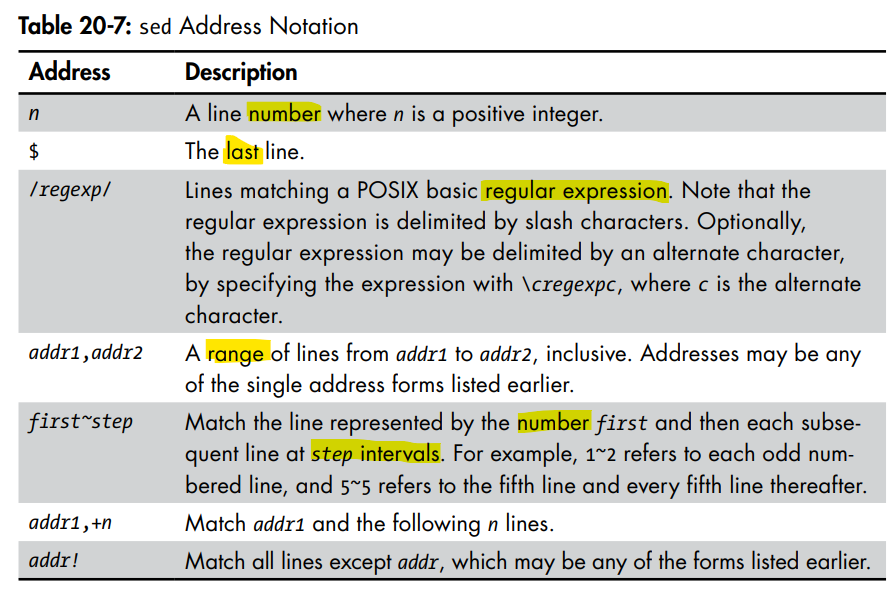
Addressing
sed 1command/text/text=> the address is one we only apply on the first line
-n=> no auto prints=> search and replacep=> print
#range
sed -n '1,5p' distros.txt
#regex
sed -n '/SUSE/p' distros.txt
#negation
sed -n '/SUSE/!p' distros.txt
#convert from mm/dd/yy to yy/mm/dd
sed 's/\([0-9]\{2\}\)\/\([0-9]\{2\}\)\/\([0-9]\{4\}\ )$/\3-\1-\2/' distros.txt
Sed Commands
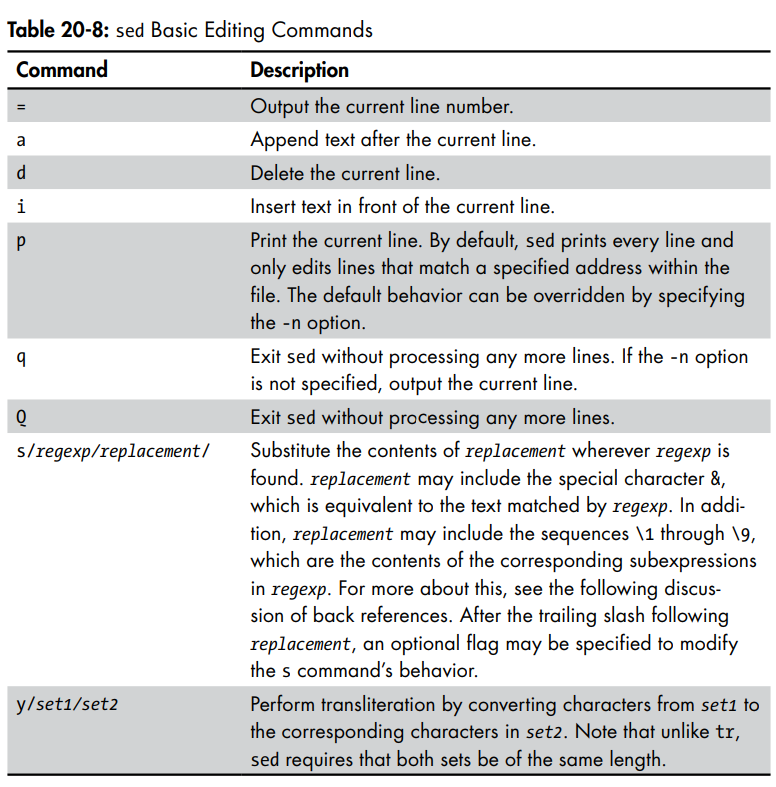
s//g=> theg(global) flag => instructs sed to apply the search-and-replace globally to a line, not just to the first instance, which is the default.
-f=> to use sed scripts in files
Aspell
Interactive Spell Checker
aspell check file
More to look for
- split => split files into pieces
- csplit => split files into pieces based on context
- sdiff => side by side merge of file differences
Modern text editing and processing tools
- ripgrep
- astgrep
- neovim
- helix
- typst
Formatting Output
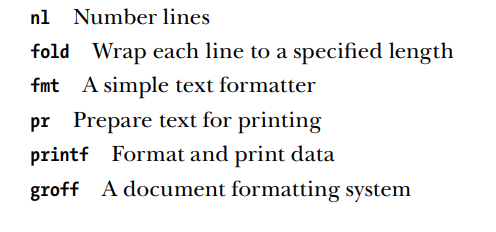
Simple Formatting Tools
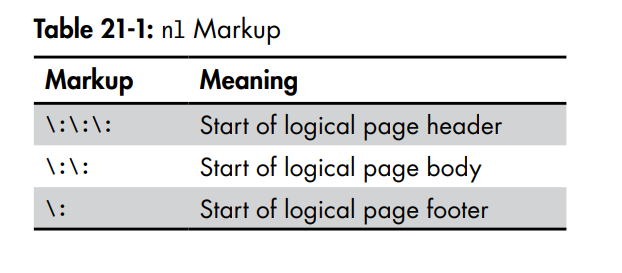
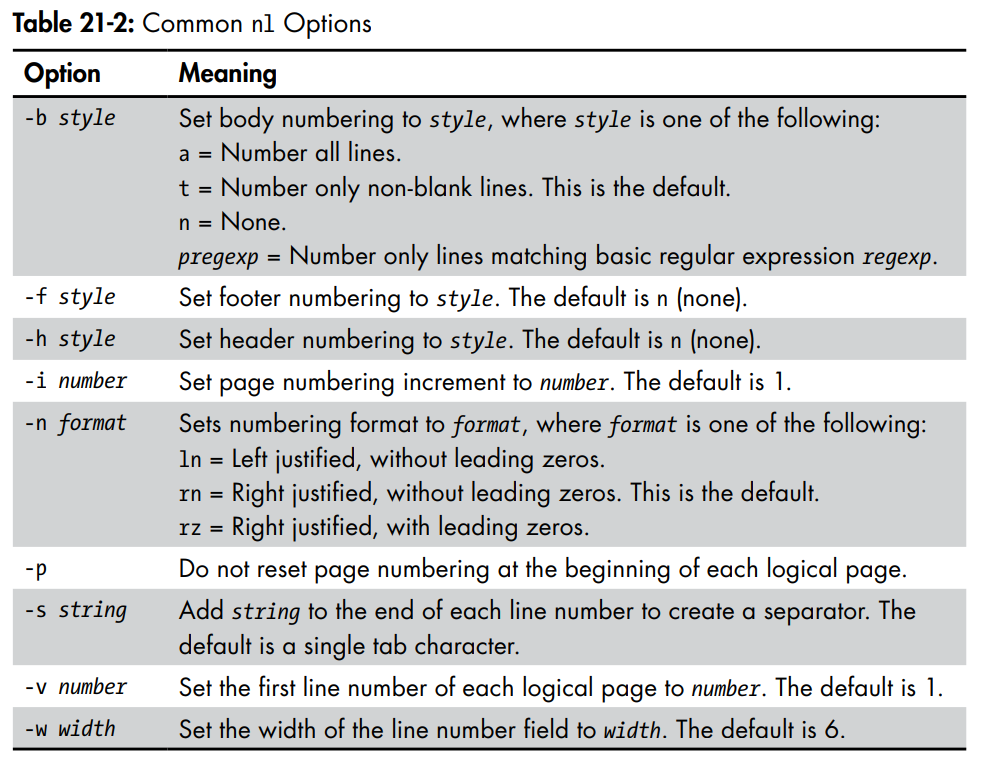
Number Lines nl
=> it's just makes the lines numbered
- Treats multiple files as a single stream of text
Fold
Wrap Each Line to a Specified Length
-w=> specify how many characters the width is gonna be-s=> fold/break on the last space available so he words be complete
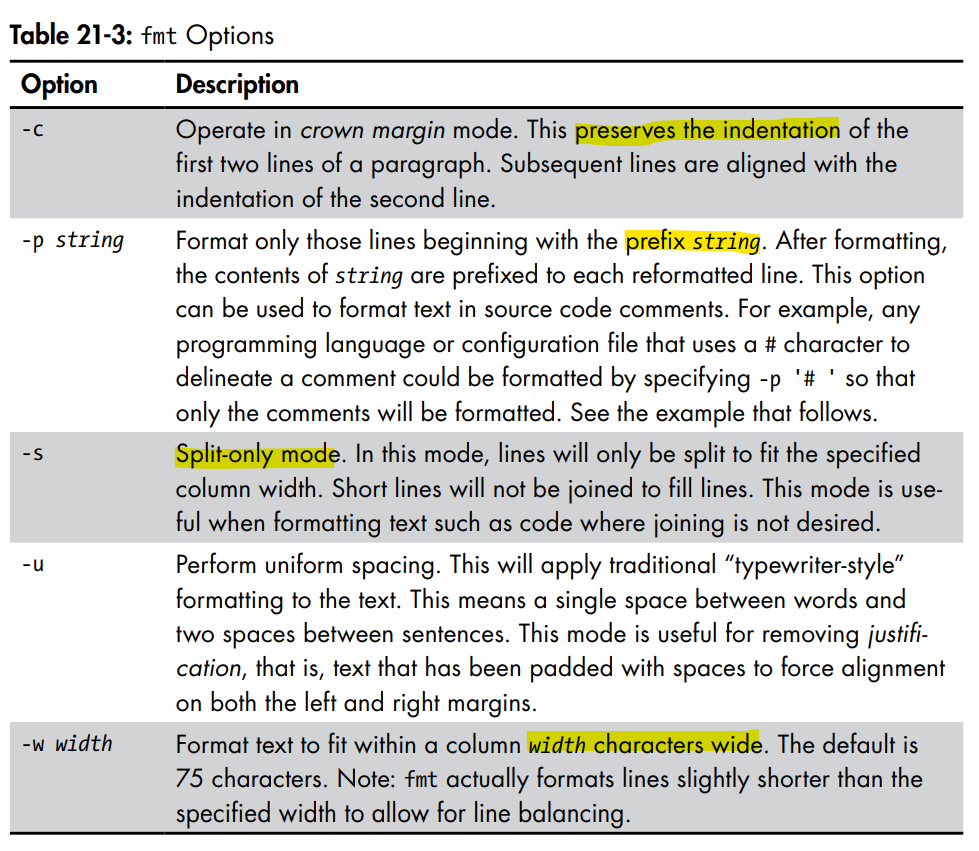
Simple Text Formatter fmt
Fold and Format Text
-w=> width characters
Format Text For Printing pr
Used to Paginate Text
-l=> Page length-w=> Page Width
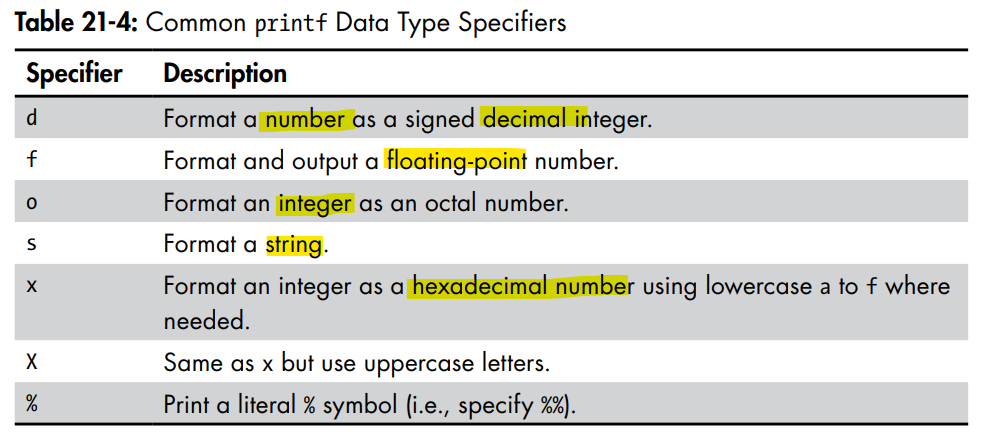
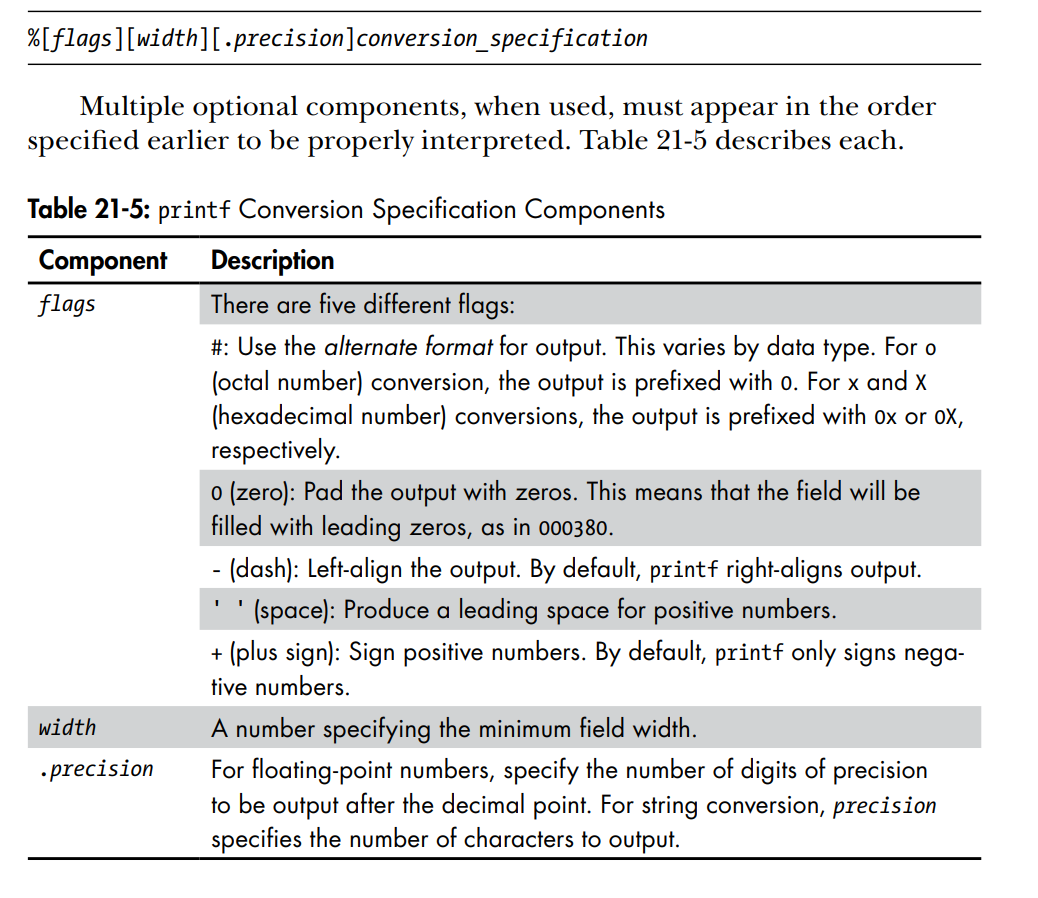
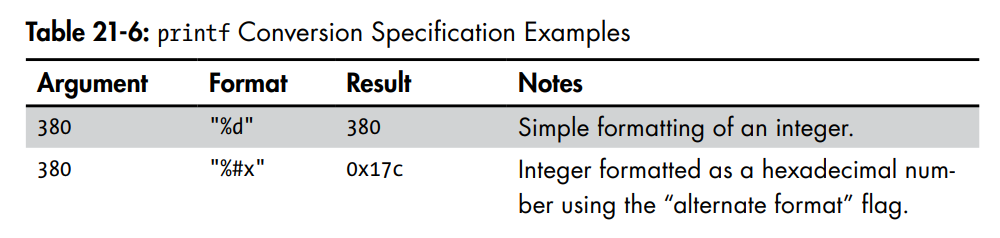
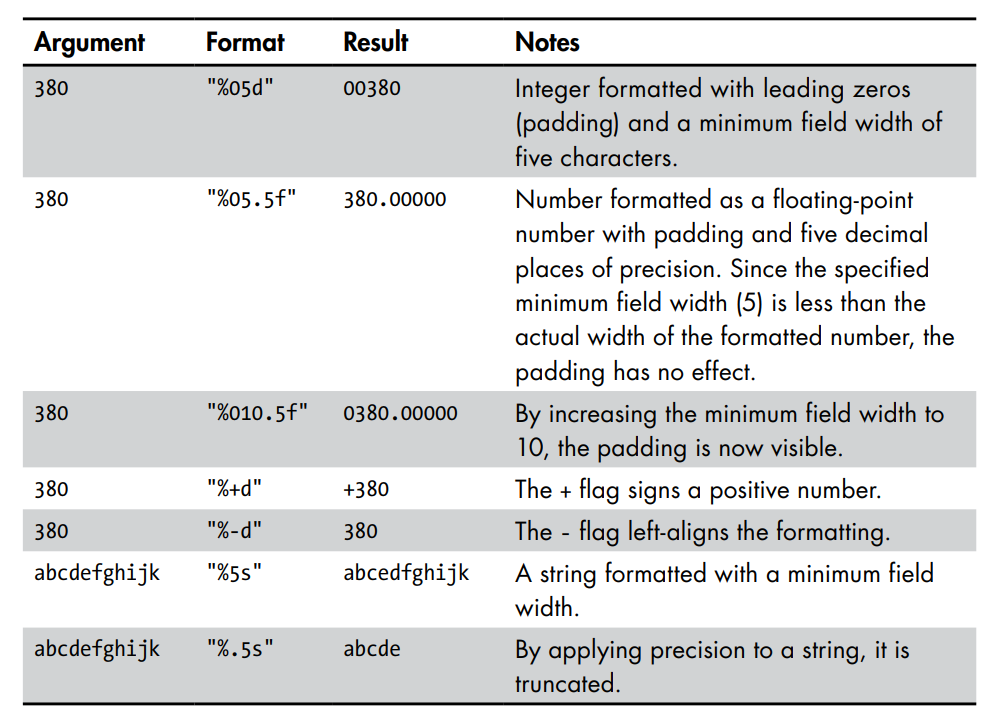
Format and Print Data printf
printf "format" arguments
Printing
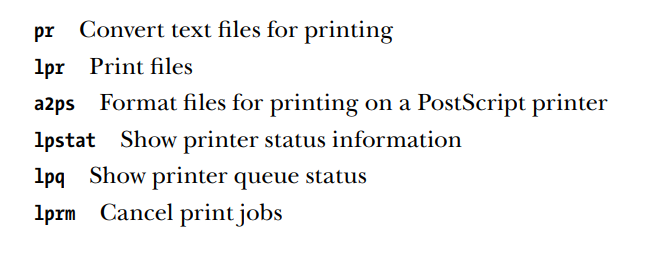
Convert Text for Printing pr
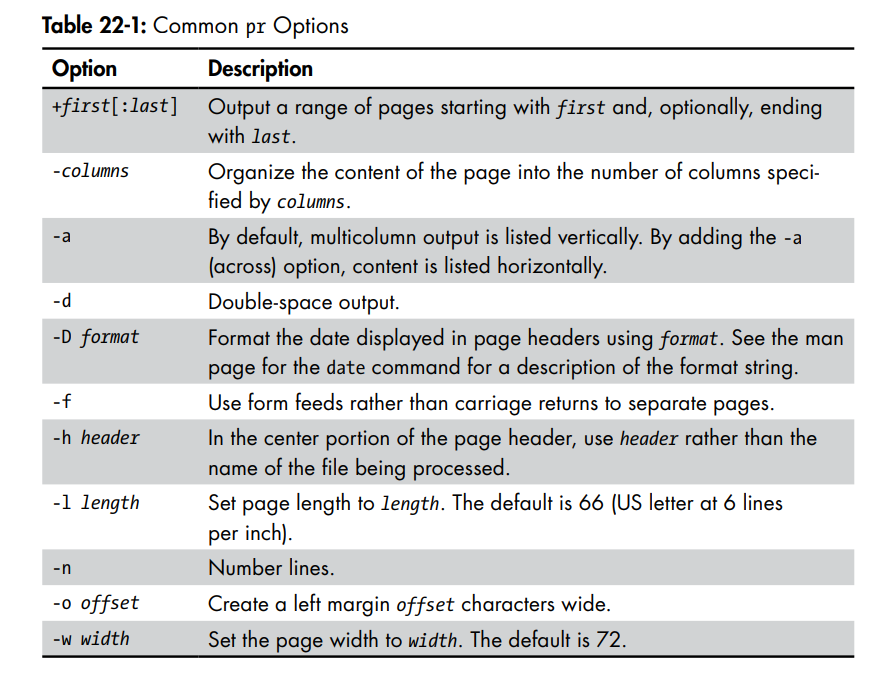
- Often used With pipelines as a filter
ls /usr/bin | pr -3 -w 65 | head # print with number of columns 3 and the width is 65Print Files lpr (Berkeley)
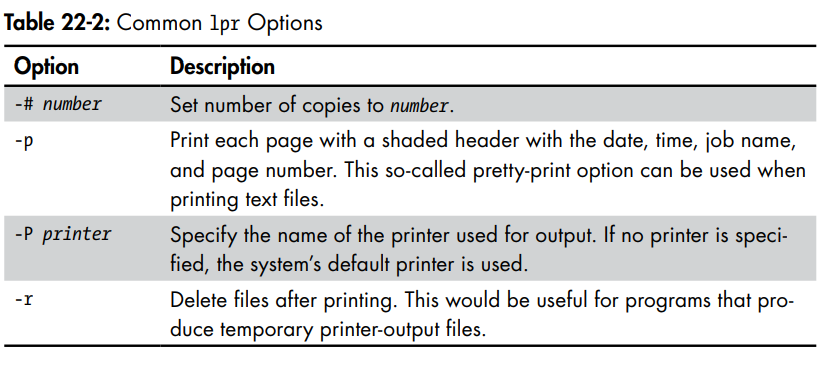
used to send files to the printer
ls /usr/bin | pr -3 | lpr # can be used in piplines like this to get input and print
-Pprinter_name=> choose the printer you want to print onlpstat -a=> List the printers known for the system
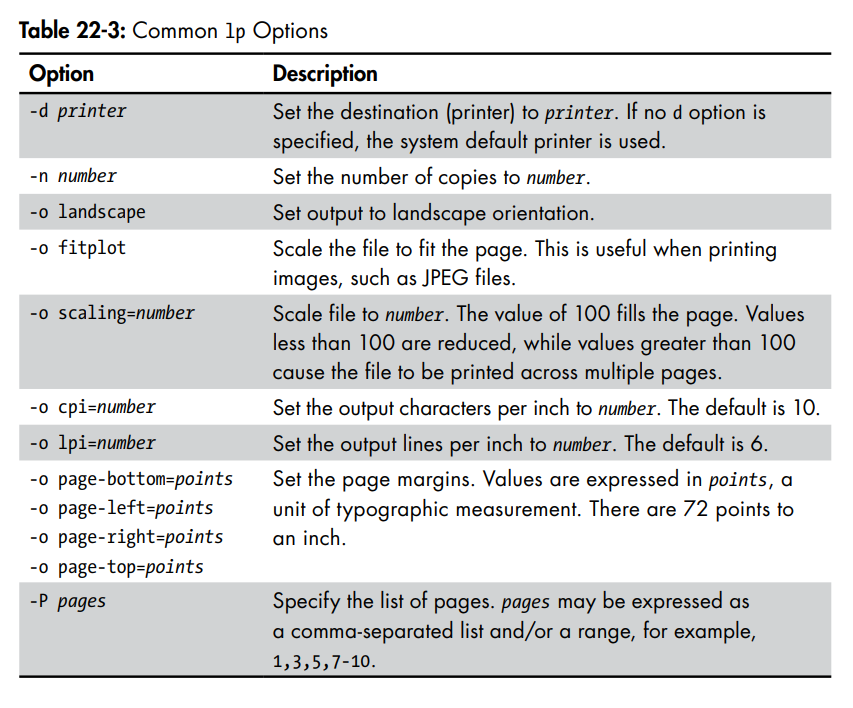
Print Files lp (System V)
ASCII To PostScript a2ps
used to prepare text files for printing on PostScript printers
Modern Look
- Its Name now means => Anything To PostScript
- Sends its output for system default printer
- its not format conversion program its a printing program
- The program’s default behavior is that of a “pretty printer,” meaning that it improves the appearance of output
- Can be used to create postscript files
ls /usr/bin | pr -3 -t | a2ps -o ~/Desktop/ls.ps -L 66 # pr make page with 3 columns and omit headers and footer with -t and then a2ps make a postscript file on desktop with the length of 66 lines per page
# [stdin (plain): 11 pages on 6 sheets]
# [Total: 11 pages on 6 sheets] saved into the file `/home/me/Desktop/ls.ps'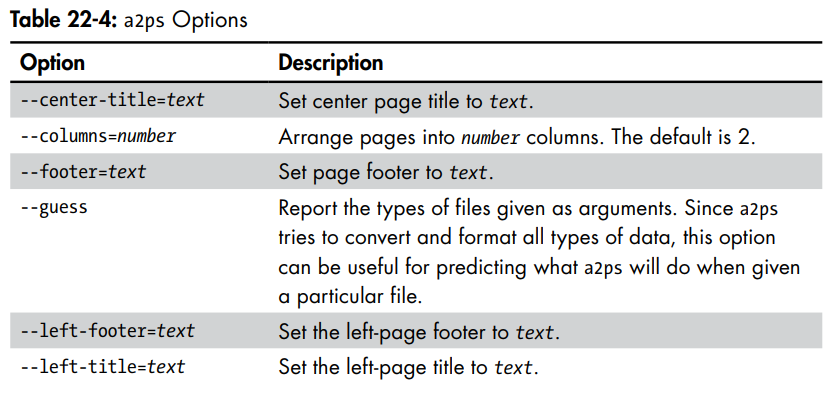 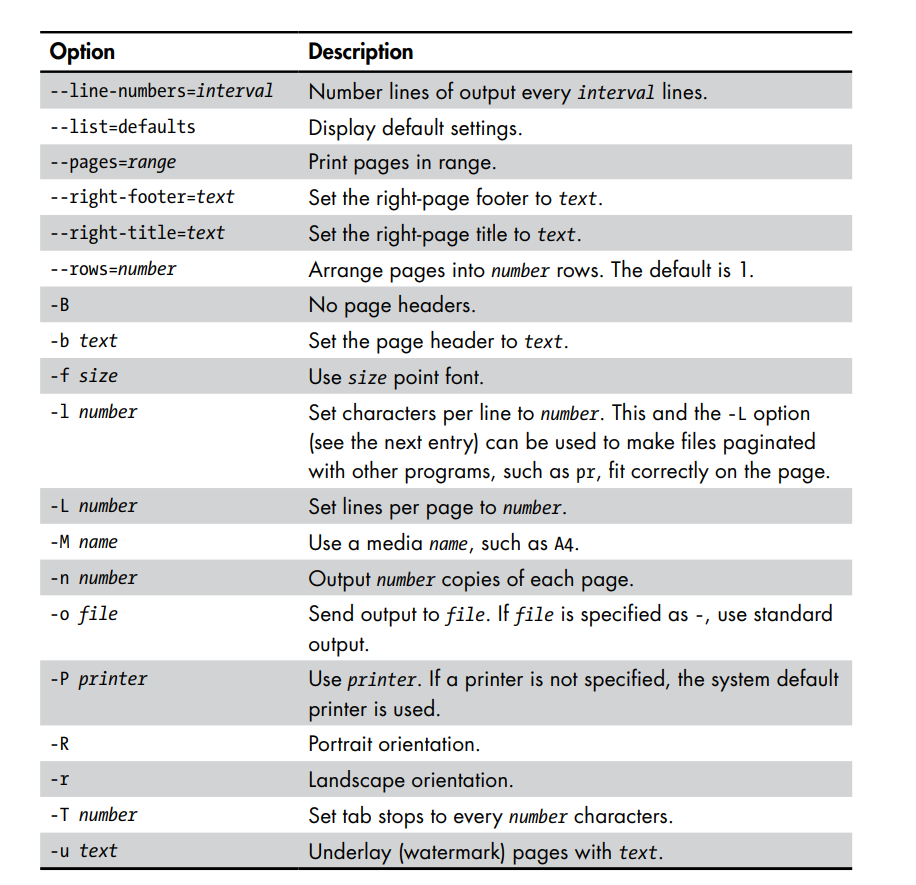
Monitoring and Controlling Print Jobs
Display Print System Status lpstat
useful for determining the names and availability of printers on the system
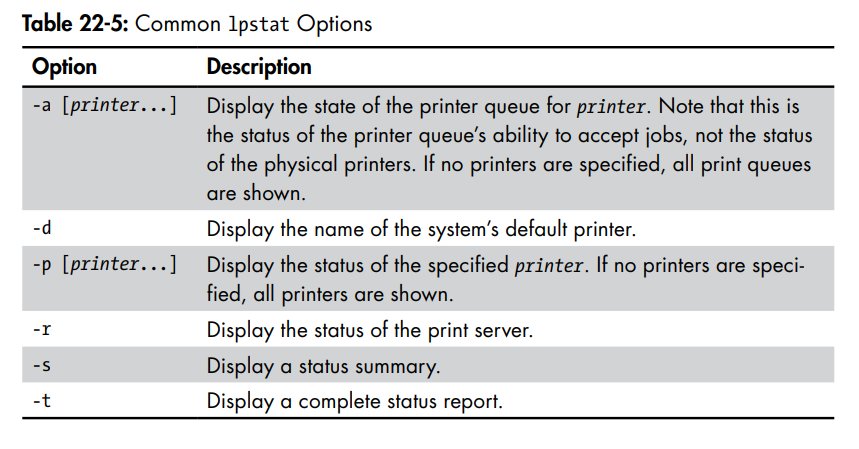
Display Printer Queue Status lpq
allows us to view the status of the queue and the print jobs it contains
Cancel Print Jobs lprm/cancel
used to terminate print jobs and remove them from the print queue
Two programs for different Styles
lprm=> Berkeley Stylecancel=> System V Style
Same Options Syntax
job-id=> terminate a job with its id =>lprm job-idcancel job-id-h server=> Specifies the print server to connect to.
lprm -h printserver.local 124cancel -h printserver.local 124-E=>: Forces an encrypted connection when communicating with the server.
lprm -E 125cancel -E 125
Different Syntax Options
- Specify a Printer
lprm -Pcancel Printer-jobid
cancel -a printer- Cancel All Jobs
lprm -canel -a printername=> cancel all jobs on a printer- Cancel Jobs for User
cancel -u usernamelprm -U
- is not supported on
lprmCUPS version
Compiling Programs
Make
=> Utility to maintain programs
Part 4 (Shell Scripting)
Good Locations for Scripts
~/bin=> personal use scripts/usr/local/bin=> everyone on the system is allowed to use/usr/local/sbin=> System administrator
Variables
variable=value

echo "$variable"
#!/bin/bash

# Program to output a system information page

TITLE="System Information Report for $HOSTNAME"


echo "<html>
		<head>
			<title>$TITLE</title>
		</head>
		<body>
			<h1>$TITLE</h1>
		</body>
</html>"
When shell sees a variable it create it even it has not been declared before so the new variable is created as an empty string
Can lead to some problems needs a carful usage
- use upper case names for Constants
declare -r TITLE="Page Title"=> makes a variable readonly (immutable)- Multi variable assignment can be done in a single line
a=5 b="a string"
- Variable names can be surrounded by
{}to overcome ambiguous names
# variable names
filename="myfile"
# i want to create a new file with  same name but have a 1 in the end
# if we did this
mv "$filename" "$filename1" # this will expand as a new variable so it will be empty

# the correct way
mv "$filename" "${filename}1" # expand the filename variable and then concatinate the 1
# Variable Expansions
a=z # Assign the string "z" to variable a.
b="a string" # Embedded spaces must be within quotes.
c="a string and $b" # Other expansions such as variables can be
# expanded into the assignment.
d="$(ls -l foo.txt)" # Results of a command.
e=$((5 * 7)) # Arithmetic expansion.
f="\t\ta string\n" # Escape sequences such as tabs and newlines.Here Documents
an additional form of I/O redirection in which we embed a body of text into our script and feed it into the standard input of a command
command >> token- Reads input until it sees the token
Hello, World! This is a here document. EOF
text
token #stops

# ________________________________
$ cat << EOF
#!/bin/bash
USER_NAME="Nader"
CURRENT_DIR=$(pwd)
cat << _EOF_
Welcome, $USER_NAME!
You are currently in the directory: $CURRENT_DIR
_EOF_
- by default, single and double quotes within here documents lose their special meaning to the shell.
- parameter expansion is performed until its escaped
- to make parameter expansion off when using here documents
- use the token with quotes =>
cat << '_EOF_'<<-=> Strip all leading taps (not spaces) so you can make indentation and your code more readable
# Strip Indentation

if true; then
    # This is much cleaner!
    cat <<- EOF
        This text is indented with tabs.
        So is this line.
    EOF # This delimiter is also indented with a tab.
fi
Script to Retrieve files using ftp
#!/bin/bash
# Script to retrieve a file via FTP
FTP_SERVER=ftp.nl.debian.org
FTP_PATH=/debian/dists/stretch/main/installeramd64/current/images/cdrom
REMOTE_FILE=debian-cd_info.tar.gz
p -n <<- _EOF_
	open $FTP_SERVER
	user anonymous me@linuxbox
	cd $FTP_PATH
	hash
	get $REMOTE_FILE
	bye
	_EOF_
ls -l "$REMOTE_FILE"
TOP-DOWN Design
=> This process of identifying the top-level steps and developing increasingly detailed views of those steps
- allows us to break large complex tasks into many small, simple tasks
- is a common method of designing programs and one that is well suited to shell programming in particular
Shell Functions
# Formal
function name {
	commands
	return
}

# Simple (more preferred)
name () {
	commands
	return
}
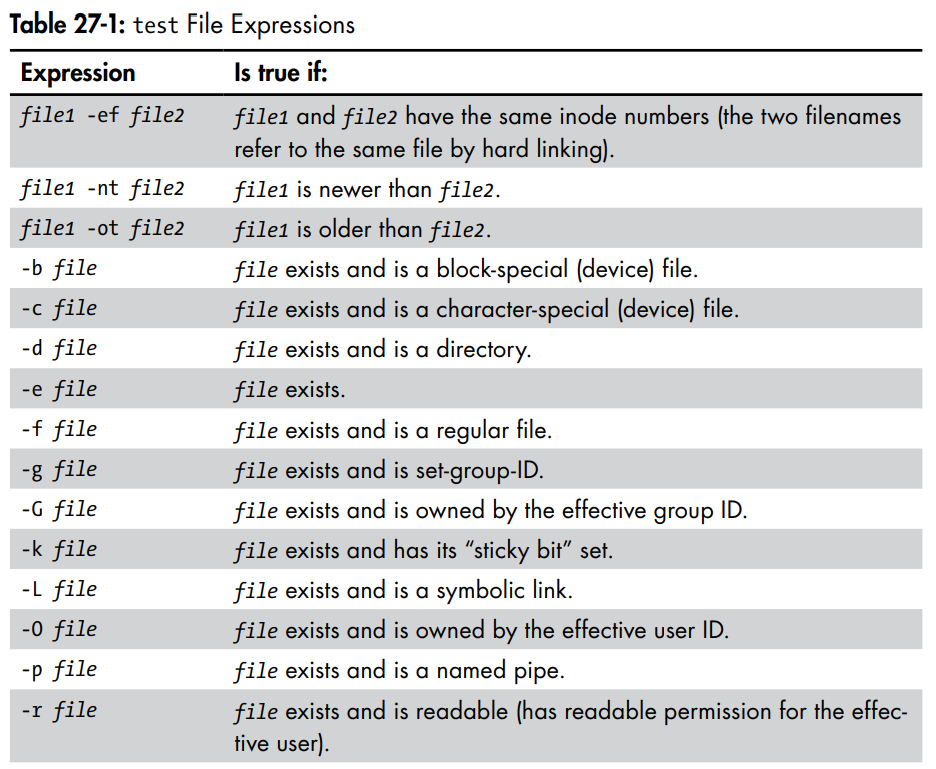
Test
Used With if a lot
returns an exit status of 0 when the expression is true and a status of 1 when the expression is false
Test Forms
testexpressions[expression]
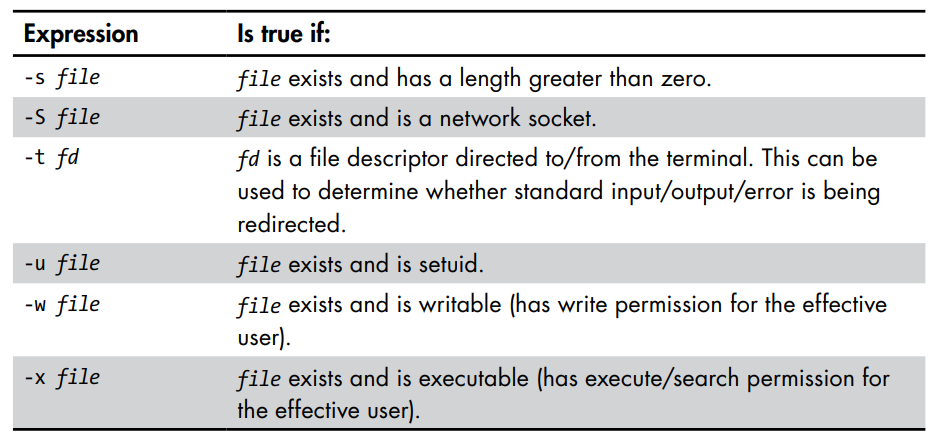
Local Variables
only exist in the scope of the shell function
foo=0
func_1 () {
	local foo
	foo=1
	echo "func_1 : foo = $foo"
}
echo "global : foo = $foo"
Stubs => Empty Functions
If Statements
if commands; then
	 commands
[elif commands; then
commands...]
[else commands]
fix=5
if ["$x" -eq 5 ]; then
echo "x equals 5."
else
echo "x does not equal 5."
fi
-eq=> equal==
Exit Status
Commands (including the scripts and shell functions we write) issue a value to the system when they terminate
- an integer value in range of 0 to 255
- Indicates the success or failure of the command's execution
0=> Success
- Any other number => failure
# Examine the exit status

echo $?
What's Happening
-
if false; true; then echo "It's true."; fi-
The shell runs the
falsecommand (which does nothing but exit with a "failure" status). -
The shell runs the
truecommand (which does nothing but exit with a "success" status). -
The
ifstatement looks at the exit status of the last command, which wastrue(success). -
Since the condition was successful, it executes
echo "It's true.".
-
-
if true; false; then echo "It's true."; fi-
The shell runs the
truecommand (success). -
The shell runs the
falsecommand (failure). -
The
ifstatement looks at the exit status of the last command, which wasfalse(failure). -
Since the condition failed, it skips the
thenblock.
-
This behavior is useful for chaining commands where you only care if the final step was successful. For example: if cd /some/dir; ls file.txt; then ...
String Expressions
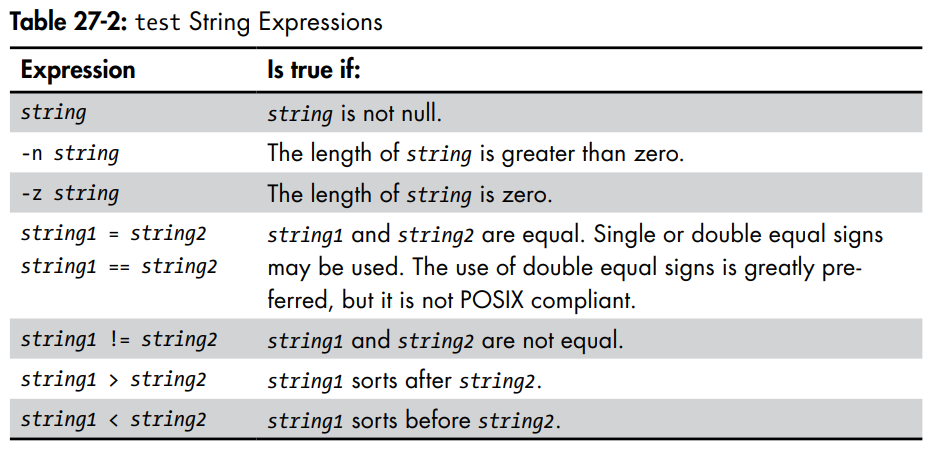
Integer Expressions
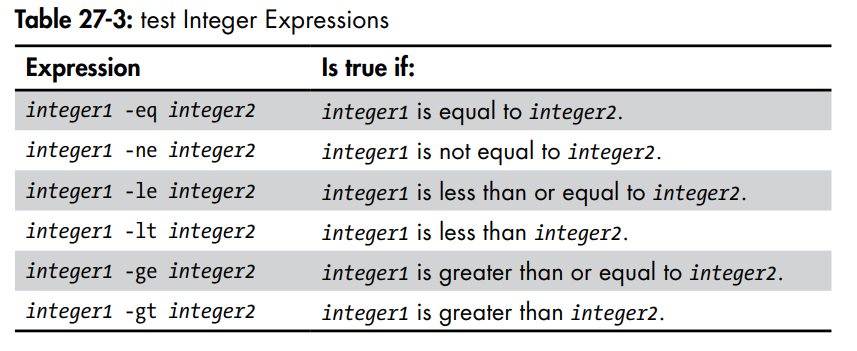
$()=> command substitution$(())=> Arithmetic Operation
Modern test
[[]]=> Compound command- Same As old test but its
- its able to match regular expressions
string1 =~ regex==supports pattern matching
if [[ $FILE == foo.* ]]; then > echo "$FILE matches pattern 'foo.*'" > fi foo.bar matches pattern 'foo.*'- useful for evaluating file and pathnames.
#!/bin/bash
# test-integer2: evaluate the value of an integer.

INT=-5

if [[ "$INT" =~ ^-?[3-11]+$ ]]; then
      if [ "$INT" -eq 0 ]; then
            echo "INT is zero."
      else
            if [ "$INT" -lt 0 ]; then
                  echo "INT is negative."
            else
                  echo "INT is positive."
            fi
            if [ $((INT % 2)) -eq 0 ]; then
                  echo "INT is even."
            else
                  echo "INT is odd."
            fi
      fi
else
      echo "INT is not an integer." >&2
      exit 1
fi
The
(())is [[]] but for integers
arithmetic truth test results in true if the result of the arithmetic evaluation is non-zero.
#!/bin/bash
# test-integer2a: evaluate the value of an integer.

INT=-5

if [[ "$INT" =~ ^-?[3-11]+$ ]]; then
      if ((INT == 0)); then
            echo "INT is zero."
      else
            if ((INT < 0)); then
                  echo "INT is negative."
            else
                  echo "INT is positive."
            fi
            if (( ((INT % 2)) == 0)); then
                  echo "INT is even."
            else
                  echo "INT is odd."
            fi
      fi
else
      echo "INT is not an integer." >&2
      exit 1
fi
Combining Expression
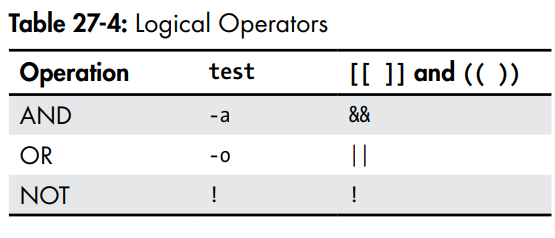
Reading Keyboard Input
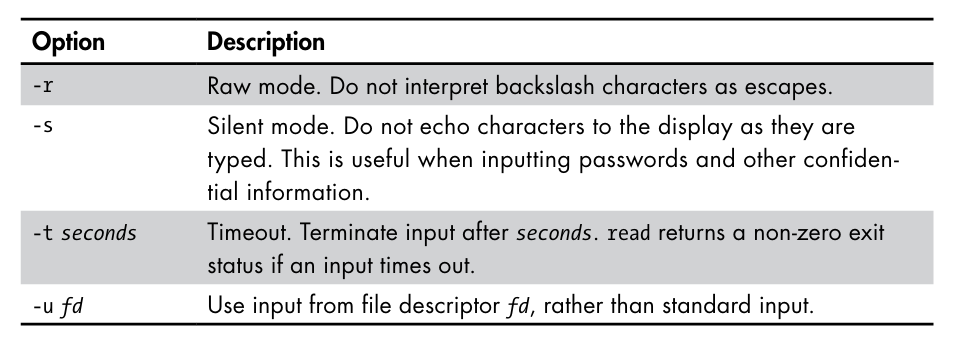
read [-options][variable...]
- If variable is not specified the shell will read the data into a variable called
REPLY
#!/bin/bash
# read-single: read multiple values into default variable

echo -n "Enter one or more values > "

read echo "REPLY = '$REPLY'"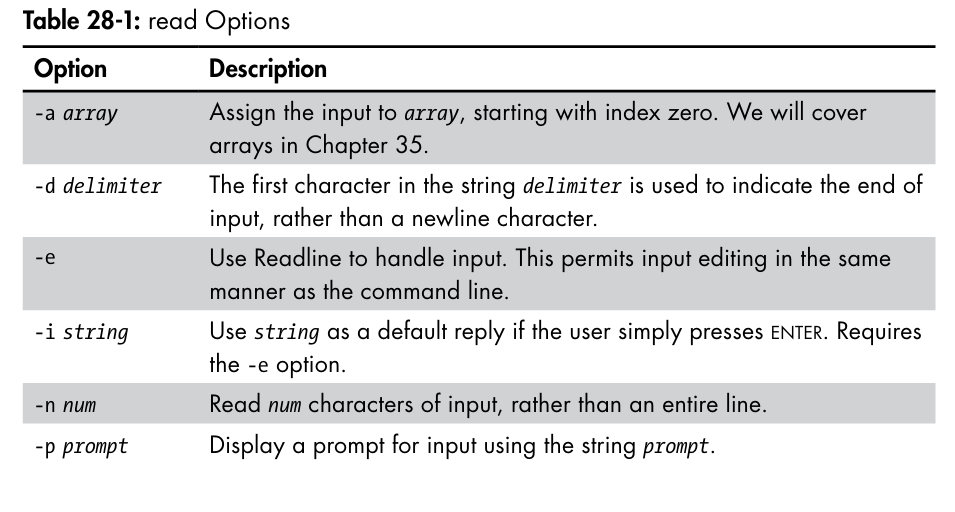
#!/bin/bash
# read-ifs: read fields from a file
FILE=/etc/passwd

read -p "Enter a username > " user_name

file_info="$(grep "^$user_name:" $FILE)"

if [ -n "$file_info" ]; then
	IFS=":" read user pw uid gid name home shell <<< "$file_info"
	echo "User = '$user'"
	echo "UID = '$uid'"
	echo "GID = '$gid'"
	echo "Full Name = '$name'"
	echo "Home Dir. = '$home'"
	echo "Shell = '$shell'"
else
	echo "No such user '$user_name'" >&2 exit 1
fi
<<<=> here Stringread=> Can not be piped
Looping
While
while [[ "$count" -le 5 ]]; do
      echo "$count"
      count=$((count + 1))
done
Until
loops until it meets the condition
count=1
until [[ "$count" -gt 5 ]]; do
      echo "$count"
      count=$((count + 1))
done
echo "Finished."
Troubleshooting
Error handling
- synthetic errors
- logical errors
- Defensive Programming
Defensive directory file deletion
- to handle the possible error of :
- the directory does not exist
- the directory is empty
- the change directory operation is successful
rm ./*instead ofrm *because if there is a file named-rfcan cause serious problems (its legal to have file with that name)
# Delete files in directory $dir_name
if [[ ! -d "$dir_name" ]]; then
      echo "No such directory: '$dir_name'" >&2
      exit 1
fi
if ! cd "$dir_name"; then
      echo "Cannot cd to '$dir_name'" >&2
      exit 1
fi
if ! rm ./*; then
      echo "File deletion failed. Check results" >&2
      exit 1
fi
Portable File Names
- Can be used on multiple platforms and operating systems
- POSIX Compliant
- only allowed characters:
- A-Z
- a-z
- 0-9
- period (.)
- hyphen (-)
- underscore (
_) - file names do not begin with a hyphen
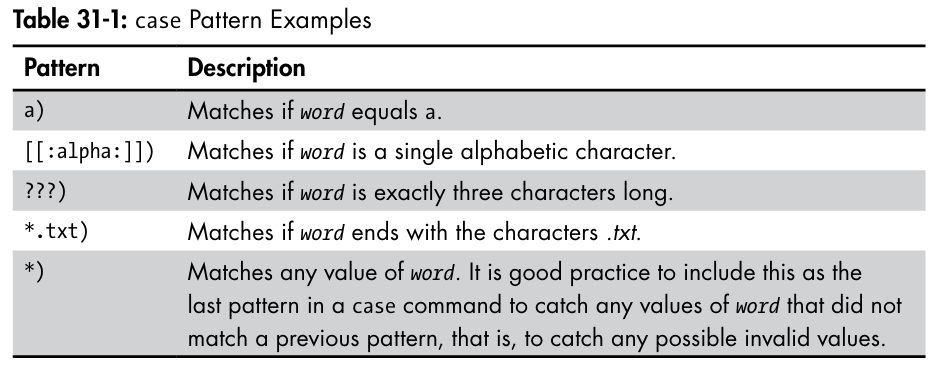
Branching with case
case word in
        [pattern [| pattern]...) commands ;;]...
esac
Case is like switch
#!/bin/bash
read -p "enter word > "
case "$REPLY" in
    [[:alpha:]])   echo "is a single alphabetic character." ;;
    [ABC][0-9])    echo "is A, B, or C followed by a digit." ;;
    ???)           echo "is three characters long." ;;
    *.txt)         echo "is a word ending in '.txt'" ;;
    *)             echo "is something else." ;;
esac
;;&Notation to match more than one condition
#!/bin/bash
# case4-2: test a character
read -n 1 -p "Type a character > "
echo
case "$REPLY" in
    [[:upper:]])    echo "'$REPLY' is upper case." ;;&
    [[:lower:]])    echo "'$REPLY' is lower case." ;;&
    [[:alpha:]])    echo "'$REPLY' is alphabetic." ;;&
    [[:digit:]])    echo "'$REPLY' is a digit." ;;&
    [[:graph:]])    echo "'$REPLY' is a visible character." ;;&
    [[:punct:]])    echo "'$REPLY' is a punctuation symbol." ;;&
    [[:space:]])    echo "'$REPLY' is a whitespace character." ;;&
    [[:xdigit:]])   echo "'$REPLY' is a hexadecimal digit." ;;&
esac
[me@linuxbox ~]$ case4-2
Type a character > a
'a' is lower case.
'a' is alphabetic.
'a' is a visible character.
'a' is a hexadecimal digit.Before bash 4.0 you only able to match one condition and then exit
Positional Parameters
shell has built-in variables that is named from
$0through$9
$0 , $1 , $2 , $3, $4 , $5 , $6 , $7 , $8 , $9
$0=> Always has the path of the program being executed
[me@linuxbox ~]$ posit-param a b c d
$0 = /home/me/bin/posit-param
$1 = a
$2 = b
$3 = c
$4 = d
$5 =
$6 =
$7 =
$8 =
$9 =$#has the number of arguments the program has
[me@linuxbox ~]$ posit-param a b c d
Number of arguments: 4
$0 = /home/me/bin/posit-param
$1 = a
$2 = b
$3 = c
$4 = d
Using Shift to loop through arguments
- used to loop through arguments and move to the next one and the old one is discarded
$#is decreased every time shift process an argumentshift number=> jumps multiple times for example move from$1to$4
File Info script
#!/bin/bash
# file-info: simple file information program
PROGNAME="$(basename "$0")"
if [[ -e "$1" ]]; then
      echo -e "\nFile Type:"
      file "$1"
      echo -e "\nFile Status:"
      stat "$1"
else
      echo "$PROGNAME: usage: $PROGNAME file" >&2
      exit 1
fi
file_info () {
# file_info: function to display file information
if [[ -e "$1" ]]; then
echo -e "\nFile Type:"
file "$1"
echo -e "\nFile Status:"
stat "$1"
else
echo "$FUNCNAME: usage: $FUNCNAME file" >&2
return 1
fi
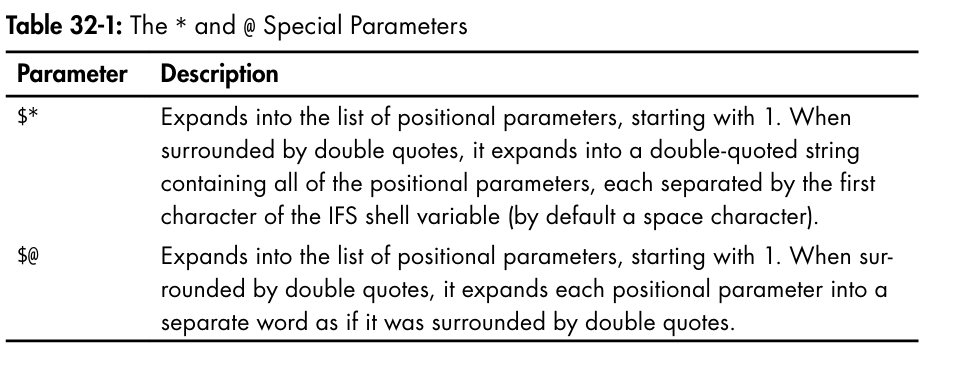
}Positional Parameters Expansion
#!/bin/bash
# posit-params3: script to demonstrate $* and $@
print_params () {
      echo "\$1 = $1"
      echo "\$2 = $2"
      echo "\$3 = $3"
      echo "\$4 = $4"
}
pass_params () {
      echo -e "\n" '$* :';   print_params $*
      echo -e "\n" '"$*" :'; print_params "$*"
      echo -e "\n" '$@ :';   print_params $@
      echo -e "\n" '"$@" :'; print_params "$@"
}
pass_params "word" "words with spaces"
results
 $* :
$1 = word
$2 = words
$3 = with
$4 = spaces
 "$*" :
$1 = word words with spaces
$2 =
$3 =
$4 =
 $@ :
$1 = word
$2 = words
$3 = with
$4 = spaces
 "$@" :
$1 = word
$2 = words with spaces
$3 =
$4 ="$*"=> Produces one word result"$@"=> Produces 2 word result
=> Always use "$@" the safest and most efficient
For Loops
for variable [in words]; do
commands
done
[me@linuxbox ~]$ for i in A B C D; do echo $i; done
A
B
C
Dwhen not using
inin a for loop it defaults to the positional arguments of the shell
#!/bin/bash
# longest-word2: find longest string in a file
for i; do
      if [[ -r "$i" ]]; then
            max_word=
            max_len=0
            for j in $(strings "$i"); do
                  len="$(echo -n "$j" | wc -c)"
                  if (( len > max_len )); then
                        max_len="$len"
                        max_word="$j"
                  fi
            done
            echo "$i: '$max_word' ($max_len characters)"
      fi
done
C style For
for (( expression1; expression2; expression3 )); do
commands
done
Strings and Numbers
Parameter Expansion
missing parameters and default values :
${parameter:-word}-> the word is the value that will be used for this parameter if its empty or does not exist (its just a tip for the parameter value unlike the=which assigns the actual value to the parameter)
${parameter:=word}=> a little bit different it assigns the value to the parameter if its empty or does not exist
[me@linuxbox ~]$ foo=
[me@linuxbox ~]$ echo ${foo:="default value if unset"}
default value if unset
[me@linuxbox ~]$ echo $foo
default value if unset
[me@linuxbox ~]$ foo=bar
[me@linuxbox ~]$ echo ${foo:="default value if unset"}
bar
[me@linuxbox ~]$ echo $foo
bar-
${parameter:?word}-> if empty it exists the script and shows the word -
${parameter:+word}-> if empty does nothing -> not empty shows the word (indicator if the parameter is not empty) (does not assign the value to the parameter)
[me@linuxbox ~]$ foo=
[me@linuxbox ~]$ echo ${foo:+"substitute value if set"}
[me@linuxbox ~]$ foo=bar
[me@linuxbox ~]$ echo ${foo:+"substitute value if set"}
substitute value if set
Return parameter name expansion
return names of existing variables with names beginning with
perfix
${!prefix*}${!prefix@}
[me@linuxbox ~]$ echo ${!BASH*}
BASH BASH_ARGC BASH_ARGV BASH_COMMAND BASH_COMPLETION BASH_COMPLETION_DIR
BASH_LINENO BASH_SOURCE BASH_SUBSHELL BASH_VERSINFO BASH_VERSION
String Operations
-
${#parameter}-> expands into the length of the string contained by the parameter -
${parameter:offset}${parameter:offset:length}=> string splitting
[me@linuxbox ~]$ foo="This string is long."
[me@linuxbox ~]$ echo ${foo:5}
string is long.
[me@linuxbox ~]$ echo ${foo:5:6}
string
[me@linuxbox ~]$ foo="This string is long."
[me@linuxbox ~]$ echo ${foo: -5}
long.
[me@linuxbox ~]$ echo ${foo: -5:2}
lo- remove a leading portion of the string contained in parameter defined by pattern.
${parameter#pattern}-> removes the shortest match${parameter##pattern}-> removes the longest match
[me@linuxbox ~]$ foo=file.txt.zip
[me@linuxbox ~]$ echo ${foo#*.}
txt.zip
[me@linuxbox ~]$ echo ${foo##*.}
zip- removes the text from the end defined by pattern
${parameter%pattern}-> shortest match${parameter%%pattern}-> longest match
[me@linuxbox ~]$ foo=file.txt.zip
[me@linuxbox ~]$ echo ${foo%.*}
file.txt
[me@linuxbox ~]$ echo ${foo%%.*}
file- Search and Replace (find pattern replace with string)
${parameter/pattern/string}-> only first occurrence${parameter//pattern/string}-> all occurrences${parameter/#pattern/string}-> match at the beginning of the string${parameter/%pattern/string}-> match at the end of the string
[me@linuxbox ~]$ foo=JPG.JPG
[me@linuxbox ~]$ echo ${foo/JPG/jpg}
jpg.JPG
[me@linuxbox ~]$ echo ${foo//JPG/jpg}
jpg.jpg
[me@linuxbox ~]$ echo ${foo/#JPG/jpg}
jpg.JPG
[me@linuxbox ~]$ echo ${foo/%JPG/jpg}
JPG.jpg
Case Conversion
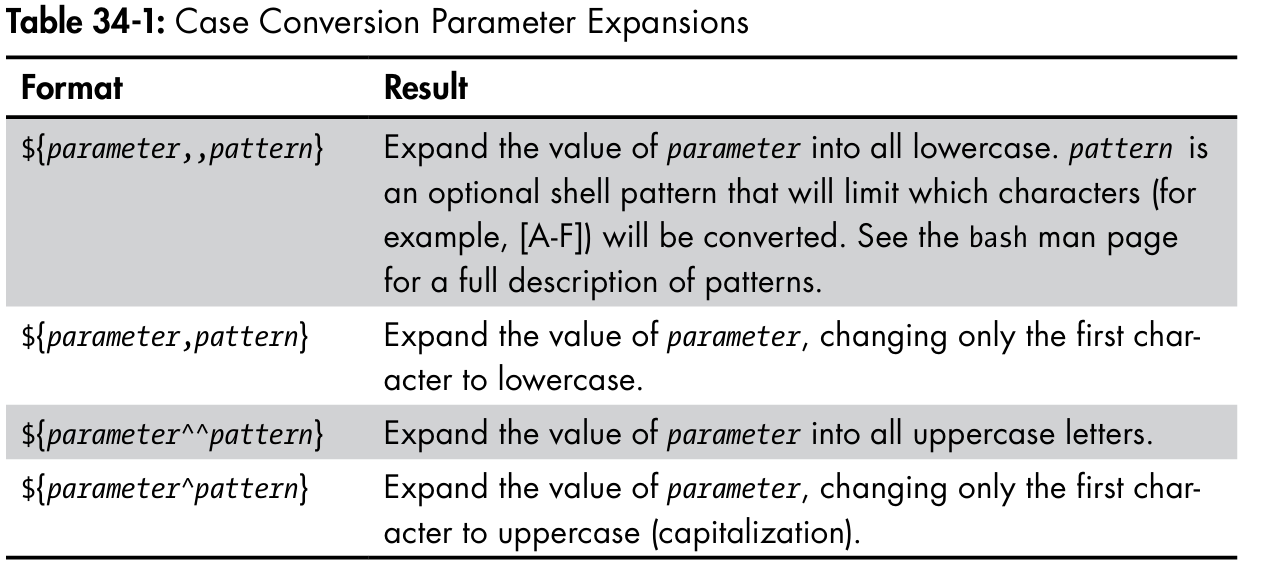
#!/bin/bash
# ul-param: demonstrate case conversion via parameter expansion
if [[ "$1" ]]; then
        echo "${1,,}"
        echo "${1,}"
        echo "${1^^}"
        echo "${1^}"
fi
Result
[me@linuxbox ~]$ ul-param aBc
abc
aBc
ABC
ABc
Number Bases
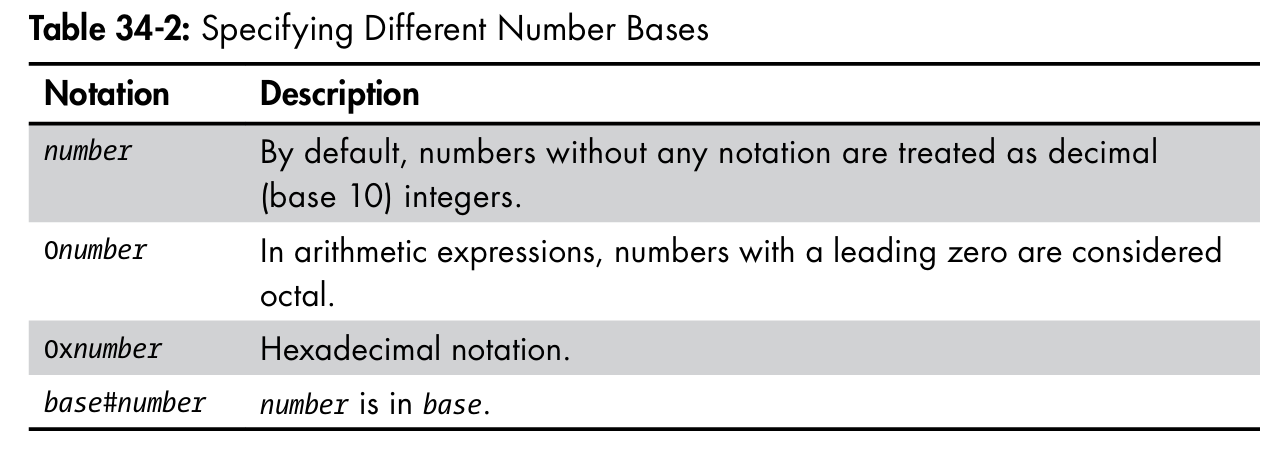
[me@linuxbox ~]$ echo $((0xff))
255
[me@linuxbox ~]$ echo $((2#11111111))
255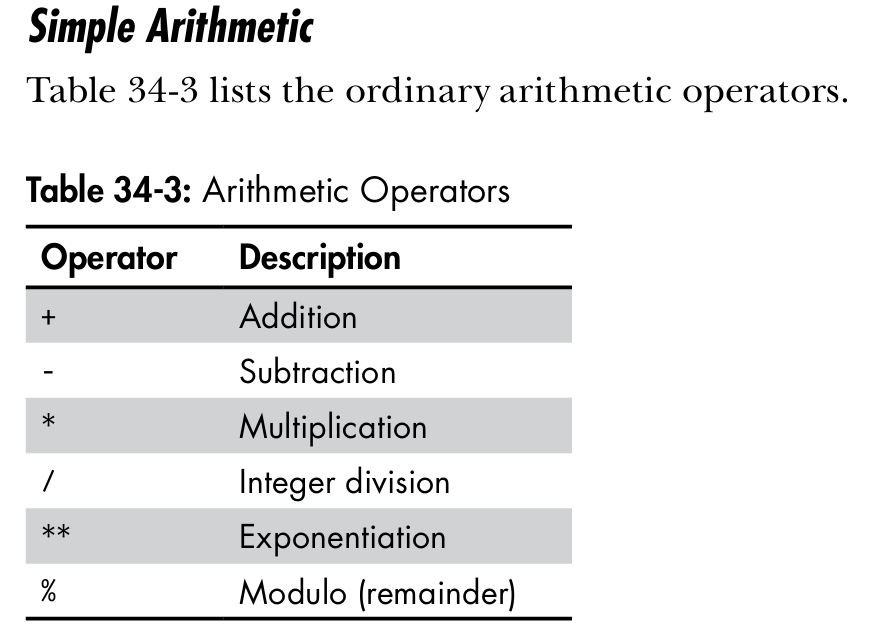
#!/bin/bash
# modulo: demonstrate the modulo operator
for ((i = 0; i <= 20; i = i + 1)); do
      remainder=$((i % 5))
      if (( remainder == 0 )); then
            printf "<%d> " "$i"
      else
            printf "%d " "$i"
      fi
done
printf "\n"
[me@linuxbox ~]$ modulo
<0> 1 2 3 4 <5> 6 7 8 9 <10> 11 12 13 14 <15> 16 17 18 19 <20>Assignment
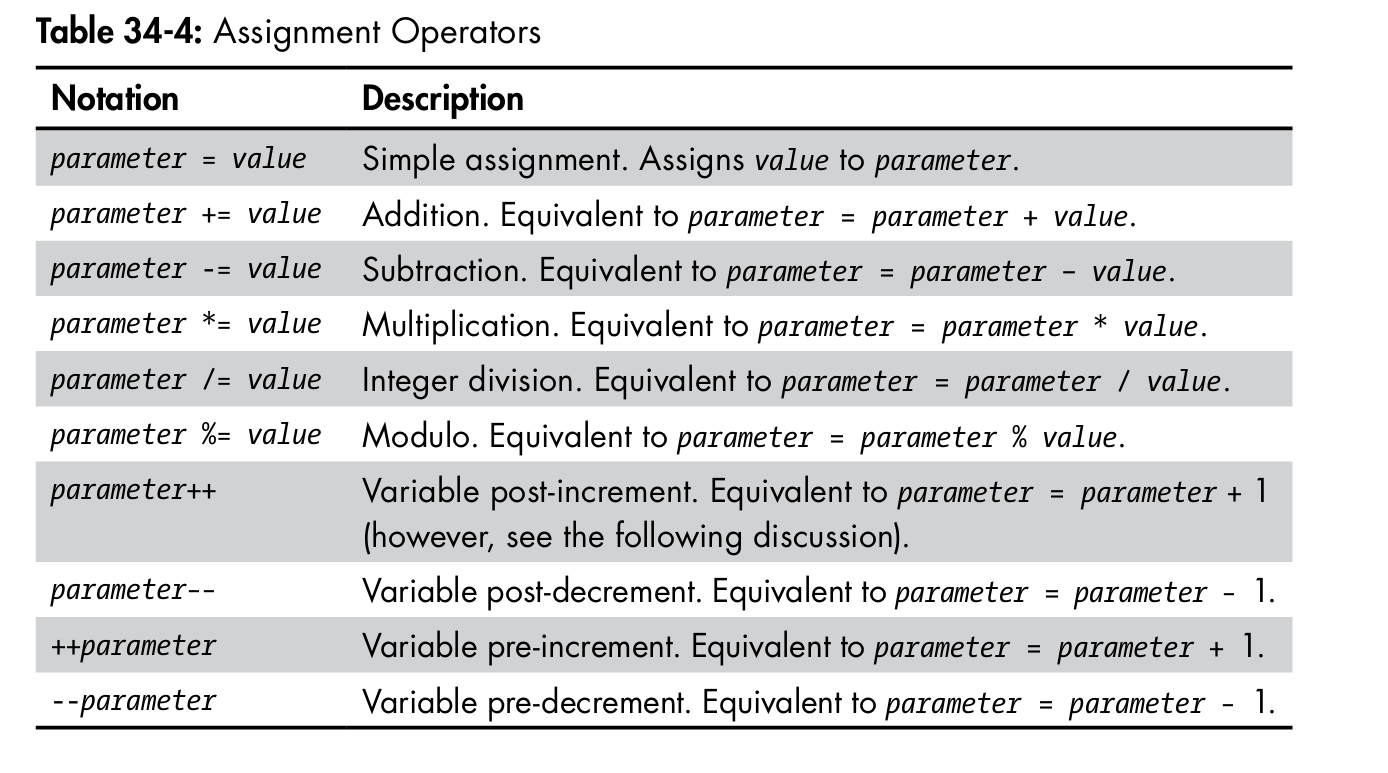
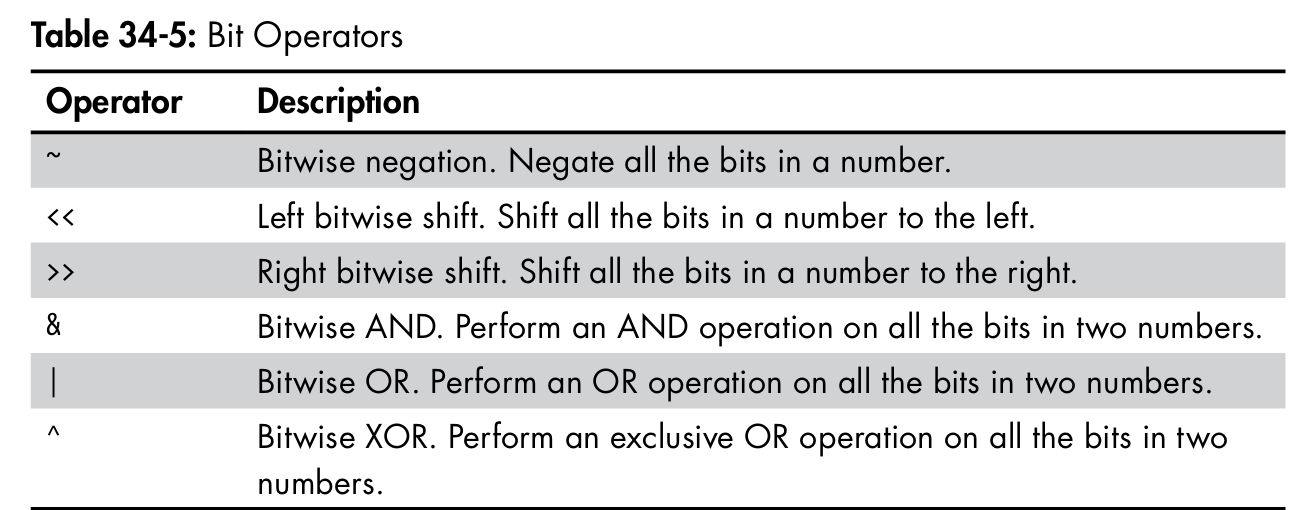
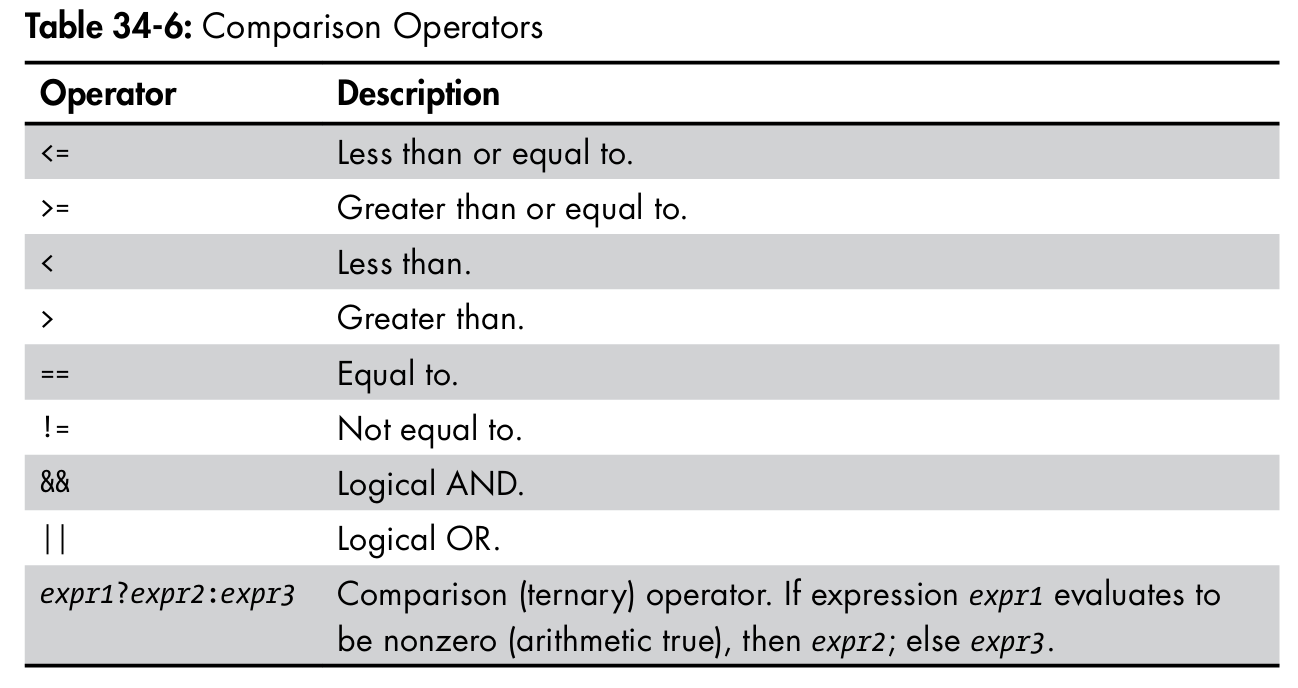
Bitwise operations
#!/bin/bash
# arith-loop: script to demonstrate arithmetic operators
finished=0
a=0
printf "a\ta**2\ta**3\n"
printf "=\t====\t====\n"
until ((finished)); do
      b=$((a**2))
      c=$((a**3))
      printf "%d\t%d\t%d\n" "$a" "$b" "$c"
      ((a<10?++a:(finished=1)))
done
Result
[me@linuxbox ~]$ arith-loop
a      a**2      a**3
=      ====      ====
0      0      0
1      1      1
2      4      8
3      9      27
4      16     64
5      25     125
6      36     216
7      49     343
8      64     512
9      81     729
10     100    1000
Arrays
Same as positional params we can use * and @ to access all array elements
[me@linuxbox ~]$ animals=("a dog" "a cat" "a fish")
[me@linuxbox ~]$ for i in ${animals[*]}; do echo $i; done
a
dog
a
cat
a
fish
[me@linuxbox ~]$ for i in ${animals[@]}; do echo $i; done
a
dog
a
cat
a
fish
[me@linuxbox ~]$ for i in "${animals[*]}"; do echo $i; done
a dog a cat a fish
[me@linuxbox ~]$ for i in "${animals[@]}"; do echo $i; done
a dog
a cat
a fishArray length
- can be known using parameter expansion same as string
${#array[@]}=> Gives the array length (number of elements)
- to find array current non-empty indexes
"${!array[@]}"
[me@linuxbox ~]$ foo=([2]=a [4]=b [6]=c)
[me@linuxbox ~]$ for i in "${foo[@]}"; do echo $i; done
a
b
c
[me@linuxbox ~]$ for i in "${!foo[@]}"; do echo $i; done
2
4
6
Adding elements to the end of the array (append)
using
+=sign
[me@linuxbox ~]$ foo=(a b c)
[me@linuxbox ~]$ echo ${foo[@]}
a b c
[me@linuxbox ~]$ foo+=(d e f)
[me@linuxbox ~]$ echo ${foo[@]}
a b c d e f
Delete array
using the
unsetcommand
delete an element from the array
- using the
unset 'array[index]'
Associative Arrays
uses strings rather than integers as an index
- Created using the
declare -Acommand (must be created this way)
declare -A colors
colors["red"]="#ff0000"
colors["green"]="#00ff00"
colors["blue"]="#0000ff"
Exotica
Group Commands and subshells
Group command
- Executes in the same shell
{ command1; command2; [command3; ...] }
Subshell
- copies the environment and creates a new shell to run the commands (every change on the subshell is lost after returning the value)
- same as pipelines
(command1; command2; [command3;...])
Process Substitution
solves the subshell problem
-
does not lose variable values after returning
-
process with standard output
<(list)
-
process with standard input
>(list)
usually used with loops that uses the read command
#!/bin/bash
# pro-sub: demo of process substitution
while read attr links owner group size date time filename; do
      cat << EOF
            Filename:   $filename
            Size:       $size
            Owner:      $owner
            Group:      $group
            Modified:   $date $time
            Links:      $links
            Attributes: $attr
EOF
done < <(ls -l | tail -n +2)
Result
[me@linuxbox ~]$ pro-sub | head -n 20
Filename:   addresses.ldif
Size:       14540
Owner:      me
Group:      me
Modified:   2009-04-02 11:12
Links:      1
Attributes: -rw-r--r—
Filename:   bin
Size:       4096
Owner:      me
Group:      me
Modified:   2009-07-10 07:31
Links:      2
Attributes: drwxr-xr-x
Filename:   bookmarks.html
Size:       394213
Owner:      me
Group:      me
Traps
Handle
signalsduring script execution
trap argument signal [signal...]
- This script defines a trap that will execute an echo command each time either the SIGINT or SIGTERM signal is received while the script is running.
#!/bin/bash
# trap-demo: simple signal handling demo
trap "echo 'I am ignoring you.'" SIGINT SIGTERM
for i in {1..5}; do
      echo "Iteration $i of 5"
      sleep 5
done
[me@linuxbox ~]$ trap-demo
Iteration 1 of 5
Iteration 2 of 5
^CI am ignoring you.
Iteration 3 of 5
^CI am ignoring you.
Iteration 4 of 5
Iteration 5 of 5Temporary Files
temp file naming
tempfile=/tmp/$(basename $0).$$.$RANDOM
- program name
$$=> PID$RANDOM=> Random integer
using mktemp program
-
tempfile=$(mktemp /tmp/foobar.$$.XXXXXXXXXX) -
Xcharacters are replace with random letters -
Scripts that is executed by regular users should not use the
/tmpdirectory- instead create a one for them in
$HOME [[ -d $HOME/tmp ]] || mkdir $HOME/tmp
- instead create a one for them in
Named pipes
used to create a connection between two processes and can be used just like other types of files
-
similar to client-server and IPC (interprocess communication)
-
form a (FIFO) first in first out buffer
process1 > named_pipe
process2 < named_pipe
and it will behave like this:
process1 | process2- create pipe using command
mkfifo
[me@linuxbox ~]$ mkfifo pipe1
[me@linuxbox ~]$ ls -l pipe1
prw-r--r-- 1 me   me    0 2018-07-17 06:41 pipe1
Using pipes
=> its a connection between two processes (IPC)
- In First terminal we type this
[me@linuxbox ~]$ ls -l > pipe1- Open a new terminal to receive the output using the pipe
[me@linuxbox ~]$ cat < pipe1
prw-r--r-- 1 me me 0 2018-07-17 06:41 pipe1- you can now see the output of the
ls -lcommand in the other terminal as well as the first terminal that pushed the output to the pipe now finished successfully as it was hanging when no one received the message and it was waiting